Age control
When opening an age control, the user is presented with the age limit of the item and the date the customer must be born before to purchase it:
"To purchase these items the customer must be above {age} years (born before {date})"
The age-controlled items that must be checked are presented with quantity and price.
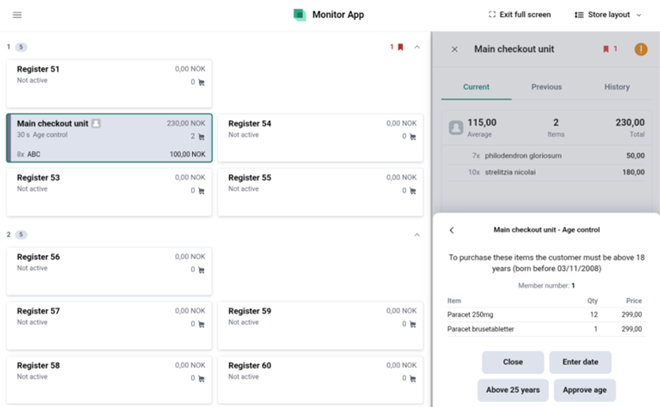
Age control: age limit, member number, items with quantity and price, and the buttons Close, Enter date, Above 25 years and Approve age
Available actions:
Enter date – the user types in a birth date ("Enter birth date") in the date format of the user's region, for example ‘dd/mm/yyyy’ in en-GB or ‘dd.mm.yyyy’ in Norwegian. Monitor App calculates whether the date is valid for the purchase. An invalid entry shows "Invalid date" and nothing is sent.
Above 25 years – the customer is clearly above 25 and the purchase is approved. The same action is available as 25+ directly on the request in the register panel.
Approve age – approves the customer for the required age limit of the item, after the ID has been checked. The button is only shown when the request has an age limit.
Close – returns with the control unhandled.
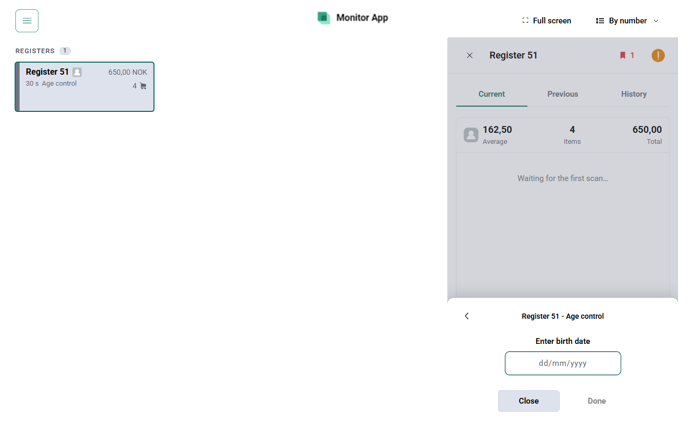
Enter birth date in the date format of the user's region
If a date below the age limit is entered, the app shows Age control not approved:
"The customer is not above {age} years. Remove all items with age limit from sale. These items are displayed on the customer screen."
The user can then press Close to return with an unhandled control, or Done to confirm that the items have been removed. The control is not cleared until Done is pressed or the register itself rejects the control. In the Alarm log it is then marked Rejected.
Where the control cannot be approved from the app, the message instead reads "Please go to the register to perform the control." and only Close is available.
Alarm item – control
Shows which item is alarmed.
"Please go to the register to remove alarm from customer's item."
Actions: Alarm removed, Close.
Substance items – notification
When the items the customer has added exceed the permitted amount of the same substance, a message is shown in Monitor App. The items are listed.
"These items contain the same substance. In combination they exceed the total permitted substance amount per customer."
Actions: Remove notification, Close.
Blocked item – notification
When the customer tries to add an item that is not for sale, Monitor App receives a message about it. The item is presented in the request.
"This item is not for sale ({reason})"
Where the register does not supply a specific reason, the default reason "due to error on item or quality etc." is shown.
Actions: Remove notification, Close.
Unknown item – control
The customer has tried to add an item that is not in the system. The user can confirm that the situation is handled.
"Please go to the register to assist the customer."
Actions: Done, Close.
Assistance required – control
When a customer asks for help at a self-checkout, Assistance required is shown in Monitor App.
"Please go to the register to assist the customer."
Actions: Done, Close.
Bank payment failed – notification
"The bank terminal disconnected and payment failed. Please go to the register to assist the customer."
Actions: Done, Close.
Empty paper – control
"The receipt printer is out of paper. Please go to the register to refill paper."
Actions: Done, Close.
Paper near empty – notification
The user is notified when a printer in the self-checkout area is close to running out of paper.
"The receipt printer is nearly out of paper. Please go to the register to refill paper."
Actions: Done, Close.
Cover open – notification
The user is notified when a printer cover is open in the self-checkout area.
"Please go to the register to close the printer cover."
Actions: Done, Close.
Approve item – control
When a customer has scanned an item that needs to be approved, the item is presented in Monitor App.
"Please go to the register to control specific item(s)."
Actions: Done, Close, and Full control when a sale requiring full control is ongoing (see Full control below).
Low sales total – control
When the total amount to pay is alarmingly low, a control is shown.
"Please go to the register to approve this purchase with low sales total."
Tapping Done approves the low sales total and the control is removed from the app.
Actions: Done, Close, and Full control when a sale requiring full control is ongoing.
Deleted item – control
If a customer chooses to delete an item in the SCO, this is sent to Monitor App.
"Please go to the register to help the customer to remove the item from the sale."
Actions: Done, Close, and Full control when a sale requiring full control is ongoing.
Employee purchase – control
When a sale is marked as an employee purchase, Monitor App shows it as a control. Confirming it means the staff approves and completes the purchase.
"Please go to the register to approve the employee purchase."
Actions: Done, Close, and Full control when a sale requiring full control is ongoing.
Random control and force control
A random control is selected by the register. Force control is a control the user takes the initiative to make. At any time, the user can open the register panel of an active sale and press Force control – even for sales that already have other controls. The button is greyed out while a forced control is already pending, and the app shows "No sale running on this register" if the register has no sale. When the control has been requested the app shows "Control forced", and "Could not force the control — try again." if it failed.
Once triggered, the sale shows Control triggered with the message:
"Please wait to perform the force control until customer goes to payment."
When the control becomes active it is shown as Random control:
"Please go to the register to perform the control."
This stops the customer from completing the purchase in the SCO so the staff can check the shopping visually. When the user is satisfied they press Approve; the control is then complete and removed from both the SCO and Monitor App.
Actions: Approve, Close.
Full control
At some stores a sale is finished at the register with an option to control the whole basket afterwards. While such a sale is ongoing, the requests Approve item, Low sales total, Deleted item and Employee purchase have the extra button Full control before Approve/Done.
Pressing Full control asks the register to perform full control of the basket. The sale is then shown as Sale finished, and the register's open requests are discarded without being answered; the register resolves them during the control. Until the full control has been resolved the finished sale stays under Current; after that it is shown as Previous.
Complete list of controls and notifications
# | Name in app | Type | Confirmation button |
|---|---|---|---|
1 | Age control | Control | Enter date / Above 25 years / Approve age |
2 | Alarm item | Control | Alarm removed |
3 | Substance items | Notification | Remove notification |
4 | Blocked item | Notification | Remove notification |
5 | Unknown item | Control | Done |
6 | Assistance required | Control | Done |
7 | Bank payment failed | Notification | Done |
8 | Empty paper | Control | Done |
9 | Paper near empty | Notification | Done |
10 | Cover open | Notification | Done |
11 | Approve item | Control | Done (Full control) |
12 | Low sales total | Control | Done (Full control) |
13 | Deleted item | Control | Done (Full control) |
14 | Employee purchase | Control | Done (Full control) |
15 | Random control / Control triggered | Control | Approve |
16 | Unknown/Invalid flight | Control | Done |
17 | Quota exceeded | Control | Done |
18 | Sealing required | Control | Done |
19 | Signature required | Control | Done |
20 | Bag dispenser empty | Control | Done |
21 | Bag dispenser problem | Control | Done |