InStore App v. 1.0.9
Released 30 June 2026
Search on Create page
A new search feature has been added to the Create page in the Instore App. Users can now quickly find transactions by typing in the search field, making it faster and easier to locate the right transaction without scrolling.
What's new:
A search field is now available on the Create page.
Search matches transactions by name — results appear whether the search term is at the beginning, middle, or end of the transaction name.
Transactions are filtered in real time as you type.
"More" tab and "About" page
A More tab has been added to the bottom navigation bar. Tapping it opens a menu with additional options.
The first option available is About, which opens a new page displaying:
Organization name and organization number
App name and version
Copyright information
Open Webshop feature added
You can now open your webshop directly from the InStore app. Configure the WebshopUrl parameter with your webshop URL, then tap More → Open website to launch it in your browser.
QR code for item in item details
A new section are added in Item details, it displays the QR code containing the GTIN. When the QR code is shown, the brightness of the screen is increased. When the QR code is closed the brightness is reverted to previous.
Improvements
Prepare shipment without storage selection (RTC-60584)
Shipment preparation supports using only transport items such as pallets and containers. This allows creating shipments without selecting storage locations when they are not needed.
The flow skips storage search and allows continuing with an empty selection. The summary page requires at least one item, either a storage or a transport item, before submission. This ensures that shipments always contain the necessary details for processing.
Faster count group loading and resuming (RTC-60689)
Selecting a count group and loading its items in the transaction view was slow, and resuming an on-hold transaction could be especially sluggish, particularly after logging back in following a short logout. This is now fixed , starting and resuming count groups is noticeably quicker, giving staff a faster, smoother stocktaking experience.
Multi-click protection across transactions and bottom sheets (RTC-60686)
The Instore App now ignores repeated taps while an action is already in progress. Tapping a button multiple times in quick succession — such as starting a transaction, finishing a cart, navigating between pages, or opening a bottom sheet — executes the action only once. This applies consistently across all transaction flows (count, breakage, goods receival, stock adjustment, transfers, purchase orders, etc.), all action bottom sheets, and general navigation throughout the app.
Allow saving count without counting all shelves (RTC-60676)
When counting stock by shelf, you no longer need to count every shelf at once. Save the quantities you've counted and return later to finish the rest. Items move to the Counted list only once all shelves are counted or set to 0.
Showing free freight limit in “Finish” page (RTC-60665)
Purchase Order summary now shows a blue notification when the total is below the supplier's free shipping limit, helping users see at a glance whether they need to add more items to qualify for free freight. Applies to single-supplier orders.
Item details - improvements (RTC-60598)
We fixed an issue where item details didn't always show the latest information after changes were made in Item Management. Updated details now appear right away when you search for the item again.
New: pull down on the Item details screen anytime to refresh and see the latest information.
Clearer feedback when a scanned item does not meet Procurement rules (RTC-60610)
When scanning an item in the Instore Cloud App, if the item does not meet one or more procurement rules, a pop-up now lists the specific rule(s) that were not met and explains why.
If multiple rules are not met, all of them are shown.
The previous generic "item not found" message is replaced by this targeted information for the procurement-rule case.
Shelf location: set as main when adding, and cancelable search (RTC-60627)
Adding a shelf location now lets you mark it as the main shelf directly from the confirmation dialog. The shelf search loading indicator no longer blocks the whole page — you can cancel a search at any time.
Free freight value now imported and stored in supplier database (RTC-60602)
Supplier free-freight thresholds are now imported from chain and stored in database in ‘Item.Supplier’ table. Also this field is now exposed in item search API as well as purchase order API’s that return supplier info.
Reset line in unpack (RTC-60638)
Previously, it was not possible to reset a line that had already been picked. Users can now reset an individual line by setting its quantity to zero, or clear the entire cart using the Reset Cart option in the transaction menu.
Scan store QR code was wrong adjusted (RTC-60634)
Fixed the scan store QR code bottom sheet. The image and text are now centered, and the title updates correctly: “Set up store” when setting up a new store, and “Change store” when scanning to switch stores.
Sub unit quantity pop-up now opens when adding an item to Stocktaking from Item details (RTC-60659)
When adding an item that has a Sub unit configured from the Item details screen into a stocktaking, the Sub unit quantity bottom sheet now opens as expected, allowing the user to enter the sub-unit quantity breakdown.
If the item is already present in the count, the bottom sheet pre-fills with the existing quantity.
Shelf location items and standard items without a Sub unit are unaffected.
Option to hide stock during Stocktaking (RTC-60631)
A new configuration parameter “ShowStockInStocktaking” allows stock levels to be hidden from view during stocktaking in both ‘Count group’ and’ Count list’ flows. Stock is shown by default and can be turned off who prefer their staff to count without seeing the system's current stock figures
Stock adjustment (RTC-60672)
Editing a stock adjustment line now keeps its entered quantity instead of resetting to 1. Negative quantities are preserved when a line's reason code is changed, when a line is reloaded, and when returning to an existing adjustment, giving a more reliable and predictable editing experience.
Incorrect pop-ups removed when adding items to Stocktaking (RTC-60662)
Adding a new item to a Stocktaking transaction no longer triggers irrelevant "Incomplete Count" or "Select Shelf Location" pop-ups in the background. This gives users a cleaner, less confusing counting workflow on the shop floor.
Stocktaking and counting quantity display (RTC-60651)
Issue - Entering a quantity greater than the number of items in a supplier package could display incorrect decimal values when reopening the item.
Inner unit quantities display correctly, ensuring accurate stocktaking and counting results.
Camera scan in the Unpack flow opens the quantity bottom sheet and keeps item lines interactive (RTC-60655)
Scanning an item via camera in the Unpack flow opens the quantity update bottom sheet once the scanner modal closes.
After a camera scan, all item lines remain fully interactive — both Zebra scanning and tapping an item line open the quantity bottom sheet as normal.
If the scanned item is not in the cart, an error is shown and the flow continues normally.
Authentication and session handling (RTC-60669)
Signing out clears stored sign-in information while active requests continue without interruption. Session handling ignores outdated sign-in data, prevents conflicts during concurrent sign-outs, and refreshes the connection handler when the environment changes, providing a more reliable sign-in and sign-out experience.
Navigation issue after auto logout (RTC-60577)
Fixed an issue where users were unable to navigate to the Home Page after being automatically logged out due to session timeout or inactivity. Users can now successfully log back in, select a store, and be redirected to the Home page as expected.
When show total is disabled for purchase order price not sent to Procurement (RTC-60624)
Purchase orders in Procurement now always contain the correct price. If the user does not display the price in the app (and we therefore do not fetch it), the price field is left empty instead of being set to 0 as before. This allows the Procurement service to fetch the price on its own.
Finnish and Danish language support (RTC-60594)
The InStore App supports Finnish and Danish as application languages across the user interface and database configuration. Application texts and expressions are available in Finnish and Danish.
InStore Management - Fixed parameters issues (RTC-60589)
The following improvements have been made to the System Parameters section in InStore Management:
Common-level settings now work correctly. Values set at the Common level are now saved and applied to all stores that do not have a store group or store-level override. Previously, the common-level value was not persisted and the system returned the default instead.
Consistent behavior for stores in multiple groups. When a store belongs to more than one store group with conflicting parameter values, the system now always applies the value from the same group deterministically, rather than returning an unpredictable result.
Parameter changes take effect immediately. Activating a parameter change in the management portal now takes effect the next time the InStore App starts, instead of the following day.
Tooltips now work The information
 icon next to parameter names now correctly shows a tooltip with the parameter description, both in the parameter list and in the edit modal.
Improved navigation panel. Stores in the left panel are now sorted consistently: active stores appear first (ordered by store number), followed by inactive stores. Stores are grouped under their relevant store group.
Reset to default. A new "Reset to default" action is available in the parameter edit modal, allowing you to quickly restore a parameter's value to its original default.
Visual fixes - Minor layout and styling improvements have been applied to the parameter edit view.
InStore App v. 1.0.8
Released 27 May 2026
Temporary Storage - Put away in InStore App
The InStore App includes a Temporary storage - Put away transaction in the Inventory section. This allows store staff to move items into temporary storage - Put away directly from the app.
When selecting Temporary storage - Put away , the user chooses between:
New Storage – Creates a new temporary storage location and adds the scanned items to it.
Existing Storage – Searches for and selects an existing temporary storage location, then adds the scanned items to it.
This makes it easy to register items in Temporary storage - Put away during daily store operations and keeps inventory movements accurate.
Temporary Storage – Unpack in InStore App
The InStore App now includes an enhanced Temporary Storage – Unpack transaction within the Inventory section, enabling store staff to unpack items directly from temporary storage.
When selecting Unpack, the user can:
Choose items via scan or search, view them under All or Picked, and unpack them partially or fully.
Select Return to Stock or Breakage, with mandatory reason and action codes for Breakage.
These improvements make it easier to manage unpacking activities accurately while maintaining consistent and correct inventory records.
Improvements
Enhancement - Item details view (RTM-12888)
Item details include additional information to give a more complete overview of each item. This makes it easier to review sales settings, supplier timelines, and assortment data in one place.
The item details additionally show the following fields:
Model name
Supplier sales start and end dates
Sales status (can be sold)
Supplier backorder
Stop sale
Product series
Replenishment code
Track stock changes
Minimum order quantity
The information is available directly in Item details after data import, ensuring that item data is accurate and complete for daily operations.
Back button changed to Close icon on Item details (RTM-12796)
Fixed an issue in the Instore App where the arrow icon was missing on the Back button across transaction screens. The Back button now displays correctly with the arrow mark, and the Back button is consistently visible and accessible on the Transaction Start Page for all transactions.
Supplier contact information in Item details (RTM-13189)
The Item details page shows supplier contact information as part of the supplier address. This makes it easier to view and use supplier details directly when working with an item.
Item details layout fix (RTM-13188)
Long color and size labels on the item details screen no longer overlap the add button. Labels now wrap to a new line when there isn't enough space, ensuring all information remains readable and the button stays accessible.
Faster Item details loading (RTM-12063)
Improved item details experience with faster updates when selecting or searching variants, clearer loading indicators during data retrieval, and better handling of missing information.
Faster item adding to cart (RTM-13291)
When adding an item to the cart, the app previously fetched price and promotion price from the backend even when price display was disabled in the app settings. This caused unnecessary backend calls and slowed down the process every time an item was scanned or added.
The app now skips price fetching entirely when price display is turned off, and fetches price and promotion price at the same time when it is needed. As a result, adding items to the cart is noticeably faster across all transaction flows.
Faster quantity adjustment in cart (RTM-13195)
Adjusting the quantity with + or − updates the value on screen, allowing fast and repeated input without interruption. The system waits briefly after the last interaction before sending the update, which reduces unnecessary processing and supports a smoother workflow.
Purchasing flow enhancements (RTM-12624)
Improvements provide a more consistent experience when moving between Single Supplier and Multiple Suppliers purchase flows. The system ensures active orders remain available and correctly matched to the selected flow.
Accurate resume prompts
Resume prompts appear only for the selected order type. When switching between Single supplier and Multiple suppliers, the system prompts you to continue an order that matches your current selection, avoiding confusion.
Improved Management of active orders
Single supplier and Multiple suppliers orders remain active at the same time when relevant. The system keeps both orders available, ensuring no active work is removed during normal usage.
Submit Purchase order flow – external order number format fixed (RTM-12914)
The external order number follows a shorter and more structured format to ensure it fits system limits and supports successful submission to procurement. The format keeps the key information needed to identify the order while reducing the total length.
For orders with one supplier, the number contains a reference to the source and the cart ID. For orders with multiple suppliers, an index is included to distinguish between suppliers within the same order.
This ensures stable order processing and prevents issues caused by long order numbers during submission.
Prices shown in Purchase order (RTM-12167)
Added new functionality to display Wholesale prices throughout the Purchase order transaction flow.
New icon and splash screen (RTM-13196)
A new icon and splash screen is added for InStore App.
User name and icon alignment (RTM-13181)
Fixed an alignment issue where the user name and icon were not correctly centered for email login users.
Radio buttons in selection dialogs (RTM-13187)
Radio buttons in selection dialogs ** (e.g., Main Identifier setting) are now properly aligned and visually consistent with separator lines, matching the intended design.
Stock status on the Item details page now behaves correctly (RTM-13182)
Items with zero stock now show Stock: 0 instead of hiding the stock information.
Items with stock that previously showed no value now display their stock reliably.
When the inventory system is unreachable, the page now shows the message "We can't reach inventory" rather than silently leaving the section empty.
The Stock and Available stock values are now shown next to each other; the Shelf line no longer appears between them.
Stock adjustment accepts negative values (RTM-13183)
Stocktaking on mobile devices accepts negative values when adjusting stock levels. This ensures stock can be reduced when needed, supporting more accurate inventory corrections.
Storage category badge alignment (RTM-13177)
Fixed an alignment issue where the storage category badge text and colors were not correctly displayed in cart line items.
Item attribute display in search and shipment views (RTM-13178)
Item details display separators such as commas and slashes only between fields that contain values. Empty attributes like Color, Size, or Brand no longer create extra separators, which keeps the item information clean and easy to read across Home page search, search in transaction, Prepare shipment, and cart line.
Prepare shipment Done page title fixed (RTM-13176)
The title on the shipment confirmation page displays Prepare shipment, making it clear that the process relates to shipment handling and completion.
Shipment storage details improved (RTM-12788)
Storage details are shown properly when there is no item present.
Scanning storage in shipment preparation (RTM-12785)
Scanning a storage location adds it directly to the cart or selects it during the process. This supports faster and more accurate handling of temporary storage and prepare shipment transactions by reducing manual selection.
Goods receival package and order export fix (RTM-12920)
Resolved an issue where exporting the Goods receival order and Package cart from InStore failed with the error.
Scroll indicator and "View All" button no longer shown when unnecessary (RTM-13179)
Previously, the expand arrow and "View All" button in the In progress section on the Home screen were incorrectly displayed even when only one transaction was active, giving the false impression that more content was available.
This has been corrected. The arrow and "View All" button now appear only when there are more than two active transactions. When all transactions are already visible, these controls are hidden.
Starting a new transaction clears previous cart state (RTM-12555)
Starting a new transaction no longer carries over leftover data from a previous cart, preventing unexpected behavior when switching between transaction types.
Submit page navigation fixed (RTM-13175)
Closing the submit page keeps the user on their current task. Starting a new action after closing the submit page no longer redirects to the home page, ensuring the user can continue their work without interruption.
Total quantity removed from shelf quantity bottom sheet (RTM-12150)
Fixed an issue in the InStore App where the total quantity value in the Shelf location bottom sheet was hidden behind the Save button during Stocktaking (Random and Count group flows). The total quantity has been removed, ensuring the Save button is always fully visible and accessible
Reduced loading spinners for a faster app experience (RTM-13106)
Moving between screens happens instantly without unnecessary loading indicators. Loading spinners are retained only where genuinely needed, such as when fetching or processing data. The result is that transaction flows feel noticeably faster and more responsive when moving between screens.
Partial unpack for all items fixed (RTM-13046)
When performing a partial unpack for all items in a storage, the system was incorrectly marking all item quantities as fully unpacked in the Chain web Inventory This has been corrected — Chain web Inventory now reflects only the actual scanned quantities, not the full storage quantities.
Fix: Transaction menu button order (RTM-12786)
The action menu in the mobile app presents buttons in a clear and consistent order. This makes it easier to find and use the most relevant actions during a transaction, improving speed and usability.
Keyboard closes correctly on transaction screen (RTM-12130)
Fixed an issue in the InStore App where the keyboard would not close after adding a note, blocking the Submit button. Users can now dismiss the keyboard by tapping outside the text field, ensuring the Submit button remains accessible.
Faster response after saving reason code bottom sheet (RTM-12706)
Improved the spinner/loading time when the action and reason code bottom sheet is saved.
Automatic logout when session expires (RTM-12705)
User is automatically logged out upon receiving an “Unauthorized” response, preventing further errors.
Quantity field text color fixed (RTM-12629)
Fixed an issue in the Instore App where the quantity font color was displayed incorrectly in edit mode for transactions.
Cart submission fixed (RTM-9958)
When store users submitted a cart, the action would unexpectedly fail due to a missing backend configuration. This has been fixed, ensuring cart submissions now complete successfully without any errors.
Error popup with correlation ID copy option (RTM-12129)
Error messages include a visible correlation ID together with a Copy button. This allows you to quickly copy the ID and share it with support, making it easier to identify and resolve issues.
Fixes- Inner unit quantity no longer hidden by keyboard (RTM-12546)
The Reason/Action bottom sheet in Breakage transaction now scrolls and resizes correctly when the keyboard is shown, ensuring all fields including Inner qty are fully accessible.
Logout bug fix (RTM-12498)
Selecting Log out ends the user session and returns the application to the login screen.
Storage modified date fix (RTM-12131)
Last modified date in Prepare shipment -> View storage information now shows correct value.
Finnish language capitalization fix (RTM-13180)
Language options display consistent capitalization, including Finnish with an uppercase initial.
Item Merger Performance Improvements (RTM-10612)
The InStore Backend Cloud Item Merger has been refactored to use a batch SQL approach, replacing the previous single-item-at-a-time processing. This significantly improves import performance when merging large item datasets from the staging table.
InStore App v. 1.0.7
Released 7 March 2026
Customer order details in Goods receival packages
In the Goods Receival Packages flow, scanning an item that contains customer order information displays a pop-up with the related customer order details.
On the Summary page, selecting View more opens a pop-up that lists all items in the package that contain customer order details.
In progress section on Home screen
Added In progress section in home page with dynamic paused‑cart visibility, expand/collapse options, smooth scrolling, resume modal support, and transaction‑specific bottom‑sheet navigation.
Take over paused and In-progress carts in the Stocktaking, order, and packaging transaction
Paused carts
Paused carts are selectable from the list. Selecting a paused cart opens it directly and lets you continue counting or picking without extra steps.
In-progress carts
In-progress carts show an alert before takeover. The alert explains that taking over the cart removes the other user from the transaction. After confirmation, the cart opens for continued counting or picking. The previous owner is removed from the cart.
Change Item model during a transaction
Updated Item details bottom sheet behavior to allow switching between Color and Size in transaction search, while preventing switching in transaction view.
Start purchase order from item details
Added the ability to start a Purchase order directly from Item details.
Improvements
Updated to .NET 10 (RTM-12468)
The InStore App has been updated to run on .NET 10, bringing improved performance and platform support.
Login page no longer freezes (RTM-12065)
The login page no longer becomes unresponsive when a loading indicator is shown. The app now handles loading on a background thread, keeping the user interface interactive throughout the login process.
Quantity field easier to tap (RTM-12398)
The quantity input field is now fully tappable across its entire area, making it easier to select and edit quantities on the transaction screen.
Backspace works in quantity field (RTM-12160)
Fixed an issue where clearing the last digit in the quantity field using backspace exited edit mode instead of allowing continued input.
Scan storage when starting shipment preparation (RTM-12397)
Added support for scanning storage directly on the Prepare Shipment – Start page.
X button in summary pauses or discards transaction (RTM-12429)
Fixed an issue where clicking the X button on the Summary page navigated back instead of showing the correct Put on hold or Discard confirmation based on transaction type.
Internal transfer error fix (RTM-12664)
The InStore App no longer shows an error when starting or resuming an internal transfer. The destination store name is now correctly passed through during the transfer process, and the app navigates to the transfer screen as expected in all cases.
Fix - Paused transactions filtered to current store (RTM-12463)
A paused cart can only be resumed in the same store where it is created.
When a cart is paused, it remains linked to the original store. This prevents carts from being resumed in a different store and ensures correct transaction handling and reporting across stores.
Automatic deactivation of paused cart (RTM-12401)
When a cart becomes inactive due to inactivity in the InStore App, the system automatically reactivates the cart when the user continues the transaction.
Enhancement - Whole numbers supported in inner units (RTM-12402)
Inner quantity entry is now more flexible across Breakage, Random Stocktaking, and Count group stocktaking, allowing successful saves regardless of main quantity or package size limits.
Inner unit qty pop-up fix (RTM-12418)
Fixed an issue where the inner‑unit quantity pop‑up did not appear or update after scanning in stocktaking and breakage transaction.
Enhancement - Transaction flow reliability improvements (RTM-12400)
Code refactored in ItemTransactionService for improved clarity and maintainability.
Enhancement - Use price endpoints to fetch item prices (RTM-12302)
Added support for retrieving Item prices through Item gateway price endpoints, enabling faster and more accurate price data access.
Keyboard and bottom sheet layout fixes (RTM-11855)
Improved bottom sheet behavior when the keyboard appears for a smoother user experience across the app.
User interface fixes (RTM-12013)
Resolved user interface overlap issues by updating the quantity field display, fixing package/order name alignment with email text, and applying the new count‑group selection design.
InStore App v. 1.0.6
Available for EG Demo environment since 26th of January 2026
Improvements
Stocktaking [RTM-11741]
Stocktaking allows editing the Quantity field for items without a shelf location. This ensures staff can record counted quantities for all items during stocktaking, even when the item is not assigned to a shelf location.
Quantity shelf location[RTM-11781]
Changing quantity for items with multiple shelf locations is possible through the shelf location bottom sheet. The item line in the list does not expand, ensuring accurate quantity updates across all shelf locations.
Search result [RTM-12151]
Searching results support correct sorting. This ensures items appear in the expected order when using search, improving accuracy and ease of finding products.
Bottom sheet for Internal Transfer [RTM-12147]
Creating a new Internal Transfer from the Item Details page displays the Reason Code bottom sheet correctly. This ensures users can select a reason without the sheet disappearing unexpectedly.
Login issue [RTM-12061]
Login process handles multiple clicks without looping and switches reliably between Test and Dev environments. This ensures stable login and prevents interruptions when accessing the app with an email address.
Area: UI improvements
Layout and icons [RTM-12186]
Area: Technical release notes
Inventory Service [RTM-12236] [RTM-9979] [RTM-9978]
The InStore App backend supports the latest Inventory Service interface. This ensures stable communication between the InStore App and the Inventory Service when retrieving and processing inventory data.
Integration tests added for Shelf Locations and Item Staging Merger.
InStore App v. 1.0.5
Available for EG Demo environment since 5th of November 2025
Stocktaking
Scanning behavior
During stocktaking, scanning items works directly from the shelf location bottom sheet. Scanning the same item increases the quantity of the selected entry by one, which speeds up counting of identical products.
Scanning a different item updates the entry to show the newly scanned product, helping users quickly continue stocktaking without closing the shelf location view.
Stock Quantity Display in Stocktaking
[RTM-11086]
During stocktaking, the bottom sheet for shelf locations shows both the counted quantity and the quantity in stock at the bottom of the view. These values update as stocktaking progresses, giving clear and accurate visibility into current stock levels.
Main Shelf Location Display on Item
In Countlist transactions, item cards consistently show the main shelf location. The display updates correctly when items are added or quantities are changed, ensuring accurate shelf information during transactions.
Count groups
Next button is green when all items are counted. Otherwise it's greyed out. If user presses “…” menu they can choose option to reset what is counted. If selected user gets a pop-up asking if they want to reset count.
Quick actions in starting view
The InStore App supports quick actions based on app functions in the Create menu. Each quick action represents a single user action, not individual transaction types. This makes quick actions easier to understand and manage.
A user can add up to five quick actions. Each action must be unique, and only supported actions are accepted. Invalid or duplicate actions are not allowed.
When a quick action is added, all related transaction types are grouped under that action. In the app interface, these related transaction types show only the option to remove the quick action, which helps keep the setup clear and consistent for the user.
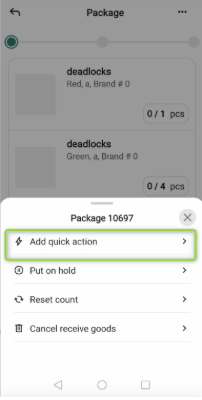
Pressing “…” menu in a function opens bottom sheet to add Quick action.
After adding a quick action, opening same function and “…” menu gives user option to Remove quick action.
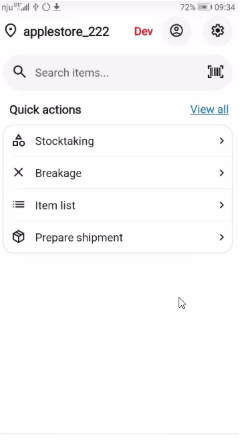
Example of what starting page looks like with added Quick actions.
Cart Handling When Using the Back Arrow in InStore App
Clicking the back arrow during a transaction presents two options: Cancel or Put on hold.
Cancel removes all items from the cart.
Put on hold saves the cart so it can be resumed later.
This gives the user clear control of the cart before leaving the transaction, and a new transaction can start after a choice is made.
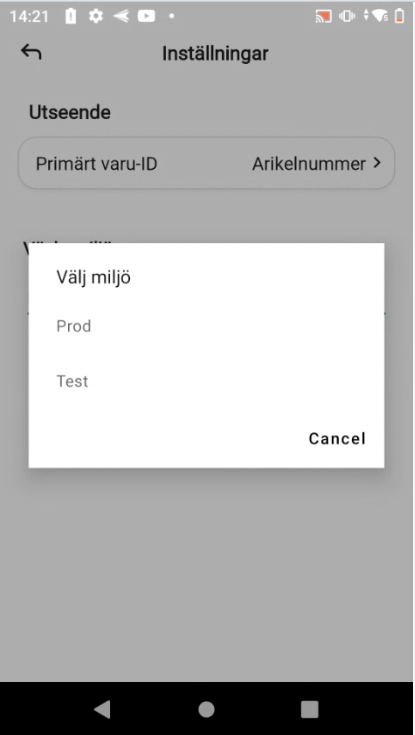
Switch environments
User, with correct permission, is allowed to move between different types of environments where Instore App is used. For example user can move between Test and Production.
Storage Categories
The Instore App now supports three distinct storage categories to help user organize and manage their inventory more effectively:
Repairs
Internal Repairs
Returns
Improved Search and Filtering
Finding the items user need is now faster and more intuitive. User can filter their storage records by category when searching, allowing them to quickly locate specific items based on their status. Whether looking for all items in repairs or need to review pending returns, the new category filters make it simple to access the information needed.
Seasonal storage
Submit prepare shipment [RTM-10954]
Prepare shipment transaction can be submitted
Typical flow in InStore App
A user scans for a seasonal storage (aka temporary storage) or selects it from a list.
In the second step, multiple storages can be added, the same we as we add items to an item transaction. The list of available storages can be filtered by categories (to be implemented in InventoryService).
Before going to the next step, a user must set the number of blue containers included in the shipment
In the last step, a shipment note can be added. After that, the transaction can be submitted.
Unit of measure
The InStore App displays units of measure in the shelf location bottom sheet and in storage details during prepare shipment transactions. This provides clear information about item quantities in the correct measurement units.
User can delete items with decimal quantity below one.
Quantity Field for Items in Pieces
The quantity field accepts decimal values for items measured in pieces, allowing precise entry of partial quantities.
Improvements
System Settings [RTM-11705]
In System Settings, the entire Main Item Identifier field is clickable. Selecting anywhere in the field opens the option to change the main item identifier.
This makes it easier to access and update the main item identifier without needing to click on a specific part of the field.
Orders and packages handling in the InStore App [RTM-11127]
The Orders and Packages view shows clear and stable behavior when working with external sources and stores without available orders or packages. Informative messages guide the user when no data is available, avoiding unnecessary popups or errors.
The order or package number appears in the header, making it easier for users to confirm that they are working with the correct order or package.
Shelf location data [RTM-10609], [RTM-11036]
Shelf locations are shown in a cleaner version, without invalid data.
It is possible to search shelf locations by area and type and also to search a storage by description in Prepare shipment transaction
Searching for item [RTM-10810]
When searching for an item, in all places where this function in available, user is informed when there is no search result.
Improved error messages and translations [RTM-10950], [RTM-10961], [RTM-11126]
Error messages for api issues have been translated and improved.
In bottom sheets all functions have correct translations and planned text positions .
Reason and Action Codes in InStore App [RTM-10994]
The list of reason and action codes in the InStore App shows only codes where IsActive = True. Codes marked as inactive stay hidden.
This keeps the list clean and ensures users select only valid codes during their work.
Inactive stores [RTM-11000]
Only active stores are shown in Instore App when selecting stores. Inactive stores are hidden in the UI.
Starting transactions [RTM-11058] [RTM-10891]
It is possible to start all transactions, those that require action/reason codes as well, with + button in item details
Stock transactions [RTM-10745]
When performing stock adjustments, user is shown the difference in stock instead of the amount of stock there is. 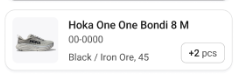
Item lists improvements
Item List Improvements in InStore App [RTM-10364]
An i icon appears next to the quantity field in the item list. Tapping the icon opens article information. This makes it easier to view item details without leaving the transaction.
Remove Item Confirmation in Item List Transactions [RTM-11637]
In item list transactions, the item action sheet includes a Remove Item option. Selecting this option shows a confirmation pop-up before the item is removed, preventing accidental deletions.
Item list UI [RTM-11638]
All views for Item list matches design by UX team.
Bottom sheets and cart
Actions Bottom Sheet Layout Improvements [RTM-11250]
The Actions Bottom Sheet in the InStore Cloud App supports multiple rows of actions with improved scrolling. Its height is limited to prevent overlap with system UI elements, ensuring a clear and consistent layout for easier interaction.
Reason and action bottomsheet improvements [RTM-11130]
All bottom sheets show or hide the close button based on the design. This ensures each screen matches the intended user experience and avoids unnecessary elements where a close button is not needed.
The bottom sheet updates item quantities correctly with the + / – buttons and no longer causes the app to crash.
Close button in bottomsheet [RTM-10903]
Deleting the cart removes reason and action codes for prefilled items. The reason and action bottom sheet fetches the correct unit of measure when adding an item. Closing the bottom sheet without saving quantity, reason, or action code keeps the original values unchanged.
Shelf location and preferences bottomsheets improvements [RTM-11131]
The Main Item Identifier bottom sheet highlights the currently selected identifier when opened, making it easier to see which item is active.
The shelf location bottom sheet features a cleaner layout for a more organized view.
Transaction buttons provide a visual indication when tapped, giving clear feedback that the action has been registered.
Stocktaking improvements
Stocktaking Improvements [RTM-10885], [RTM-11647]
Bottom Sheet Design Refresh
The bottom sheet interface has been updated to align with our latest design standards. This update ensures a more consistent visual experience throughout the app and improves the overall look and feel of the interface.
Stocktaking List Behavior Improved
We've fixed an issue with how items are managed during stocktaking from random items. Previously, when you set an item's count to 0 for a specific shelf location, the item would be removed from your stocktaking list entirely.
User can also reset a stock taking count list.
What's Changed:
Items now remain in stocktaking list even when their count is set to 0 in one location. This is especially helpful when an item exists in multiple locations, as user can now:
Continue counting the same item across different shelf locations
Keep track of items that may be out of stock in one area but available elsewhere
Maintain a complete view of stocktaking progress
This improvement makes the stocktaking process more intuitive and prevents items from disappearing unexpectedly from the workflow.
Stocktaking Quantity Handling [RTM-11640]
During stocktaking, item quantities update correctly even when set to zero. Items with zero quantity can also be deleted, ensuring accurate and manageable stock records.
Stocktaking Confirmation Popups [RTM-11646]
In the Stocktaking flow, confirmation popups appear for key actions, including Put on Hold, Set Remaining to Zero, Reset Count Group, Delete Item, Add Item, Count Item Again, Incomplete Count, Item Reset, Select Shelf Location, Cancel Stocktaking, and Take Over. This ensures users confirm critical actions and prevents accidental changes.
Language improvements
Language settings in the InStore App [RTM-10584]
Language preferences are saved in the InStore database (dbo.UserConfiguration table). If a user’s language setting is not stored in the database, it can be updated through management.
Decimal number formatting based on Device Language [RTM-10715]
All decimal numbers in the Instore App now automatically adapt to the device's language settings. This includes:
Quantity values
Prices
Promotion prices
The decimal separator used will match the format standard for language, ensuring numbers appear in the familiar format users are accustomed to.
How It Works:
English: Decimal numbers use a dot (e.g., 99.99)
Norwegian: Decimal numbers use a comma (e.g., 99,99)
Swedish: Decimal numbers use a comma (e.g., 99,99)
UI improvements
Cart line improvements in the InStore Cloud App [RTM-11128]
The Transaction Cart line displays correctly according to the design specification, providing a clearer and more consistent user interface.
Keyboard [RTM-11129]
Keyboard works as planned.
Status bar [RTM-11635]
Notification/Status Bar is visible when logged to the cashier.
Improved views [RTM-11231], [RTM-11416], [RTM-11513], [RTM-11539], [RTM-11540], [RTM-11652]
User is able to:
1. Able to scroll the Item list in the transaction view.
Count group screen is responsive after a few clicks
Swipe on added items
Scan with Zebra with correct quantity input
Handle quantity in stocktaking view
Edit quantity in shelf location bottom sheet
Decimals can be used in keyboard
Transactions can not be committed with zero quantity.
Quantity can be saved after auto-correcting a negative value input
Names of functions are called as planned
Dark mode [RTM-10066]
All dark mode views matches the design specification.
Technical release notes
Cart Operations Based on CartLineId [RTM-10435]
Cart operations use CartLineId to identify items in the cart. Each cart line contains a unique CartLineId, which ensures precise handling of cart entries.
Removing an item from the cart uses CartLineId instead of an item identifier. Changing item quantity uses a dedicated method that sets the final quantity for a cart line, rather than applying a quantity difference. This approach provides clearer and more reliable cart updates for integrations.
InStore App Token Refresh Handling [RTM-10666]
The InStore App automatically refreshes expired authentication tokens during use. After a token refresh, the application continues to operate without interruption, ensuring stable sessions and reliable access to backend services for ongoing store operations.
Backend Performance in InStore Cloud App [RTM-10779]
The InStore Cloud App backend delivers faster response times across key services. The Promotion Price API returns pricing data more efficiently, supporting quicker price calculations. Item search and image handling use optimized processing, which speeds up product lookup and image loading for a smoother experience in store operations.
InStore App Item Search – Timeout Handling [RTM-11132]
The item search handles invalid or non-existing search terms more reliably. When a searched item is not found, the app displays a “No results” message after a brief delay instead of crashing or throwing an exception. Users can perform multiple searches in sequence, and both valid and invalid searches complete without errors, ensuring stable and uninterrupted search operations.
Enhanced Quantity Validation by Unit of Measure and transaction type [RTM-9980]
Improved quantity validation to prevent negative or decimal values where not appropriate, ensuring accurate handling based on unit of measure and transaction type
Bottom Sheet Footer Update [RTM-11607]
The BottomSheetFooter in the InStore Cloud App is updated to align with the latest MAUI library changes. This ensures consistent behavior and appearance across the application’s bottom sheet components.
Import Placeholder Handling [RTM-9915]
The InStore App creates placeholders when imported data is missing, preventing errors during the merge process. If the missing data becomes available later, it is automatically filled by subsequent merges, ensuring stable and continuous data processing.
InStore App v. 1.0.0
Only available for test environments
Stocktaking Requires Items
A stocktaking transaction cannot be completed if no items are included. A popup message appears to inform the user, ensuring that only valid stocktaking records are saved.
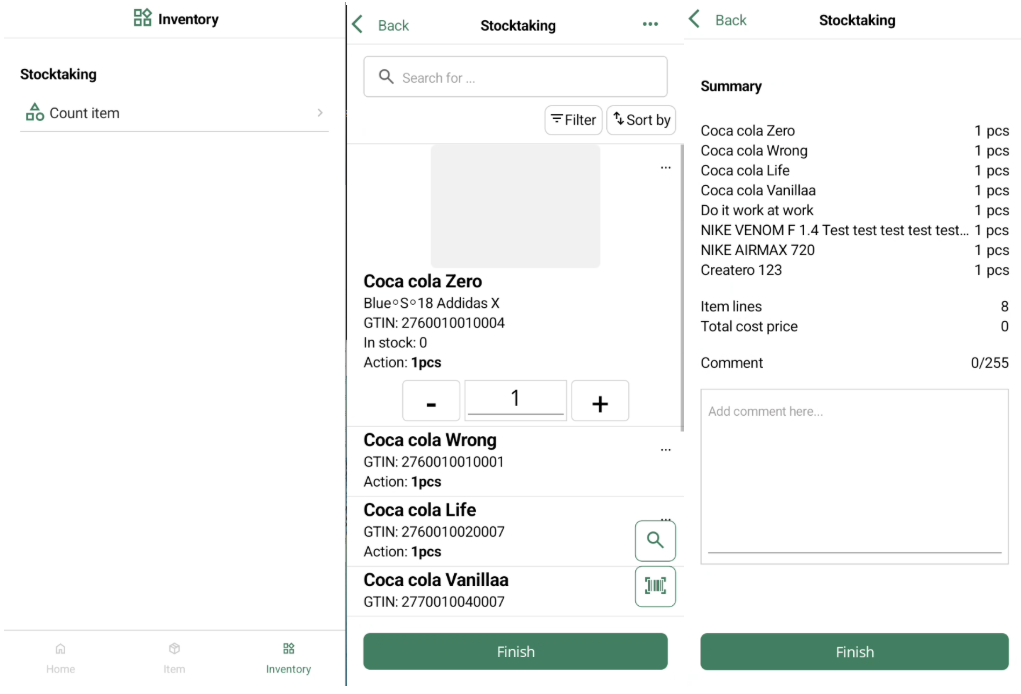
Count Groups in Counting
The counting feature supports count groups. Users can create carts with count groups, add or remove items, delete and recreate carts, and take over counting from another user. This improves flexibility and collaboration during stock counting.
Count Items in Inventory
The Inventory page includes a Count Items transaction. Stocktaking can be created, items can be added or removed, and stocktaking can also be deleted.
This makes it easier to manage and adjust stock levels directly in the app. The Quantity field in the Count Items view is editable. This allows users to enter or adjust item quantities directly, making stock counting faster and more accurate.
Stock Information in Item Details
[RTM-6548]
The Item Details page includes a Stock tab that shows stock information for the selected item. The data displays through an API call to the Stock Gateway, ensuring that the stock levels are always up to date and consistent with the central stock system.
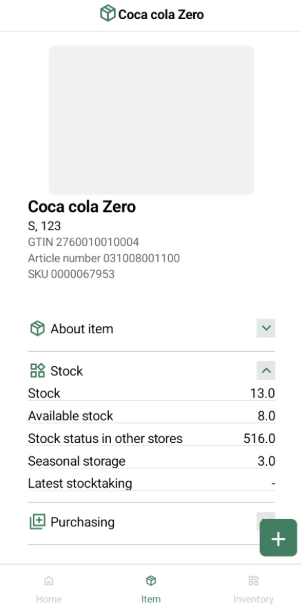
Item details - tabs
The Instore App fetches item details from Item Service. Tabs as About item, stock and Purchasing are shown.
Stock information is retrieved directly from the Stock Gateway trough an API call, giving up-to-date stock data for each item.
Below is an image of the item details at this moment.
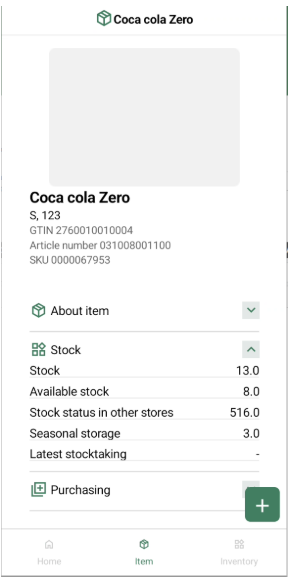
First version of item details
[RTM-6948], [RTM-7136]
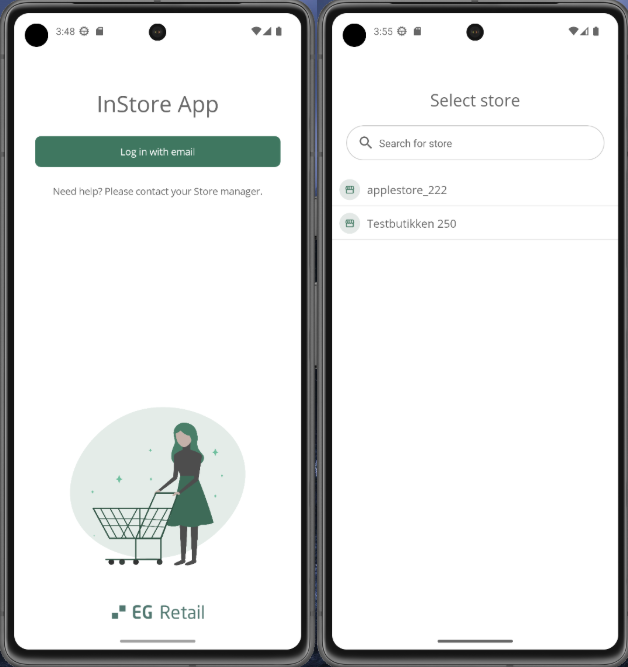
The app includes login and logout, store selection, a home page, and an item details page.
Users can search or scan for an item to open its details page, where more fields will be added later.
The item section from the Item Details page is available as a separate view. This view connects to the DetailedItemModel, making it easier to manage and display detailed item information.
Login and Logout Functionality
The system includes a login page with proper styling and logout options. Access tokens refresh automatically to keep users signed in without interruption. Access levels are planned for upcoming releases.
Images below are taken from UX design.
Technical release notes
Logging in Application Insights [RTM-8055]
All errors and crashes are logged in Application Insights. This ensures better monitoring, easier troubleshooting, and improved system stability.
Staging Phase for Data Imports [RTM-8550]
All data imports include a staging phase to improve reliability when importing related data. Imported JSON content is first stored in staging tables in the InStore database.
A background worker then merges the data into the main tables and automatically retries if any constraints are not yet fulfilled. This process prevents data loss and ensures complete imports even when dependencies exist between records.
The import process includes five jobs:
StagingImport – imports data from other services into staging tables.
StagingCleanup – removes old or processed data from staging tables.
StoreStagingMerger, ItemStagingMerger, and ItemServiceStagingMerger – merge data from staging tables into the actual tables.
Update to Lib-Mobile.Maui [RTM-8854]
The InStore App uses the latest version of Lib-Mobile.Maui. The update improves stability and ensures compatibility with the most recent mobile framework version.
Count List Export [RTM-7840]
Finished item counts in the InStore App export to JSON format. These files import directly into InventoryService as count lists, making stocktaking data easy to transfer and process.
InStore App Backend [RTM-7245], [RTM-7461]
The InStore App Cloud connects to the dedicated InStore Backend instead of the Mobile Backend. This setup improves independence and makes the InStore App easier to manage and maintain.
InStore App – Inventory and Count Lists [RTM-7460]
The InStore App backend includes endpoints for managing count lists. Users can create, submit, and remove count lists, as well as add or remove items from them.
An Inventory tab is available in the menu bar to access these functions.
InStore App – Item Import to Database [RTM-7364]
Items can be imported directly into the database. This makes it possible to manage and store item data inside the InStore App.
Release Notes 2.0 said:
App Insights logging includes the client version and client name. This makes it easier to track usage and analyze application performance.
Improvements
UI - Fonts, corners and icons [RTM-7037]
The interface includes updated fonts, rounded corners, and new icons for the login and item buttons. These changes make the app easier to read and more consistent in style.
UI - Height of Not for sale info [RTM-8359]
Hight of Not for sale info is adjusted in Item details page