Before you log in
You can login if you:
Have an Entra ID user with a cashier.
The Entra ID user is added to User Management with proper permissions.
General information:
The language in Monitor App is based on the user’s language setting on the user in User Management.
Store access is set in User Management / Chain Web.
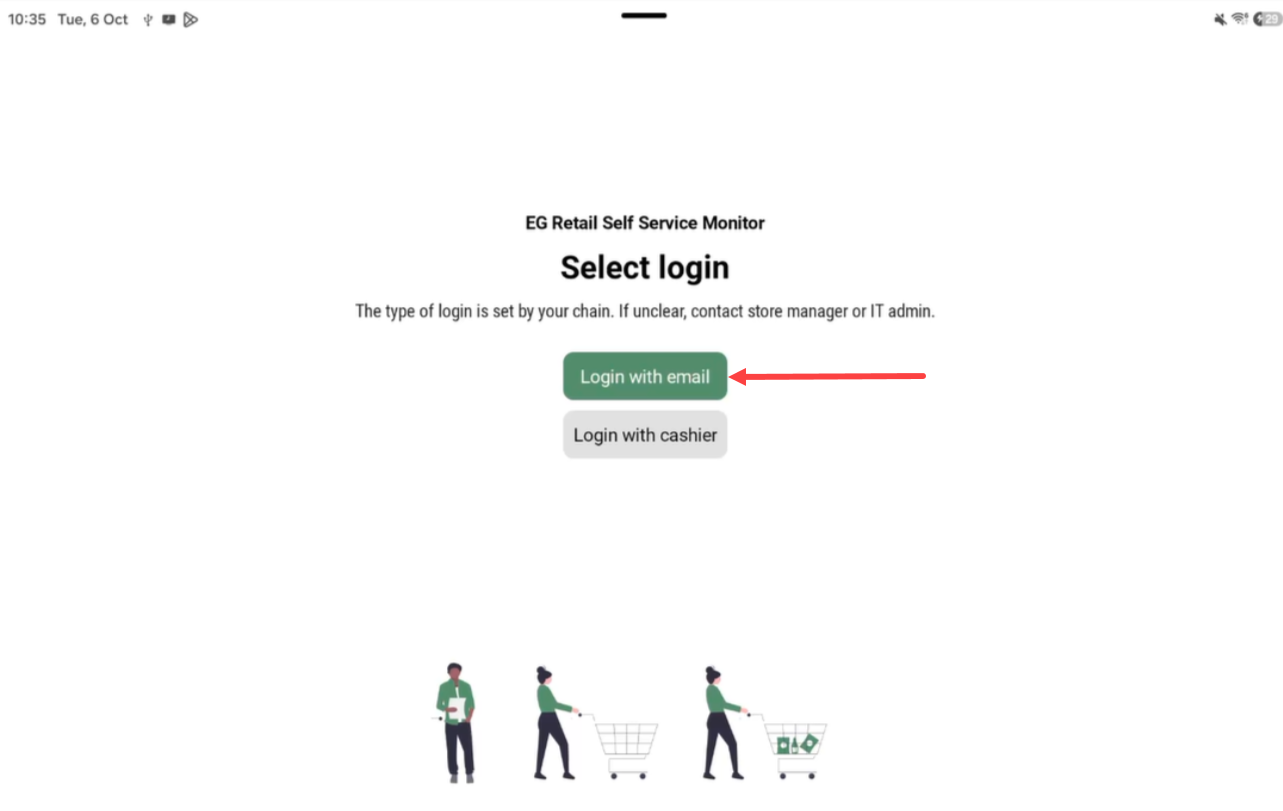
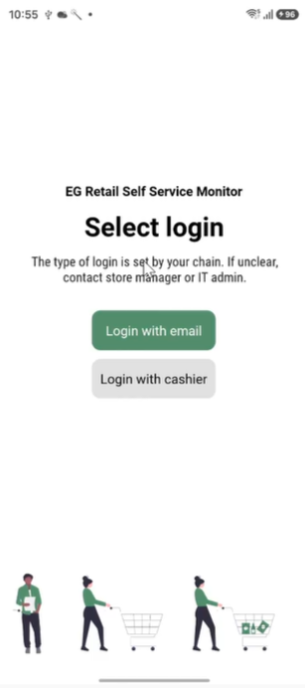
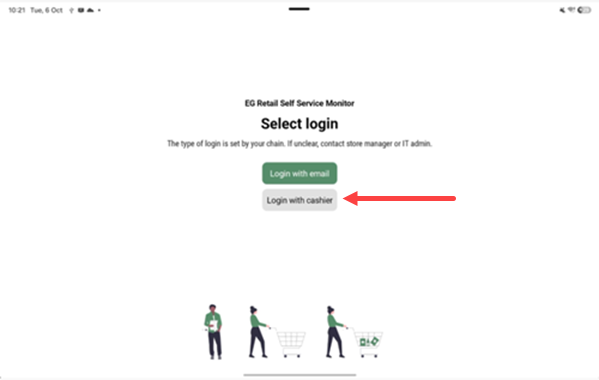
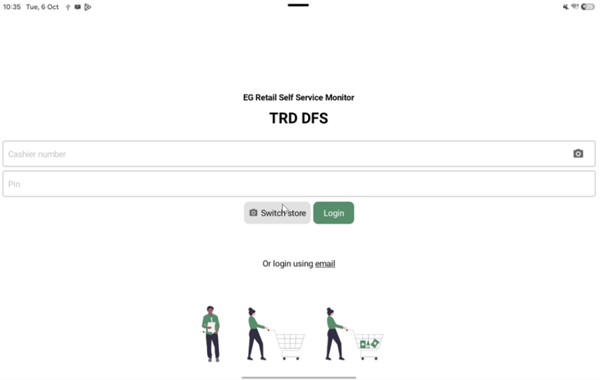
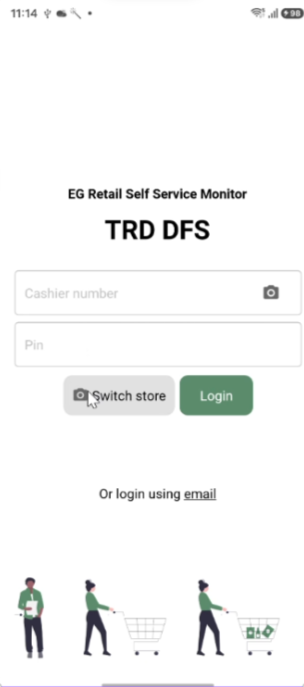
When you open Monitor App you can select whether to login with Email or Cashier.
The following sections describes the log in process for Monitor App.
Login with Entra ID (email)
Tap Login with email.
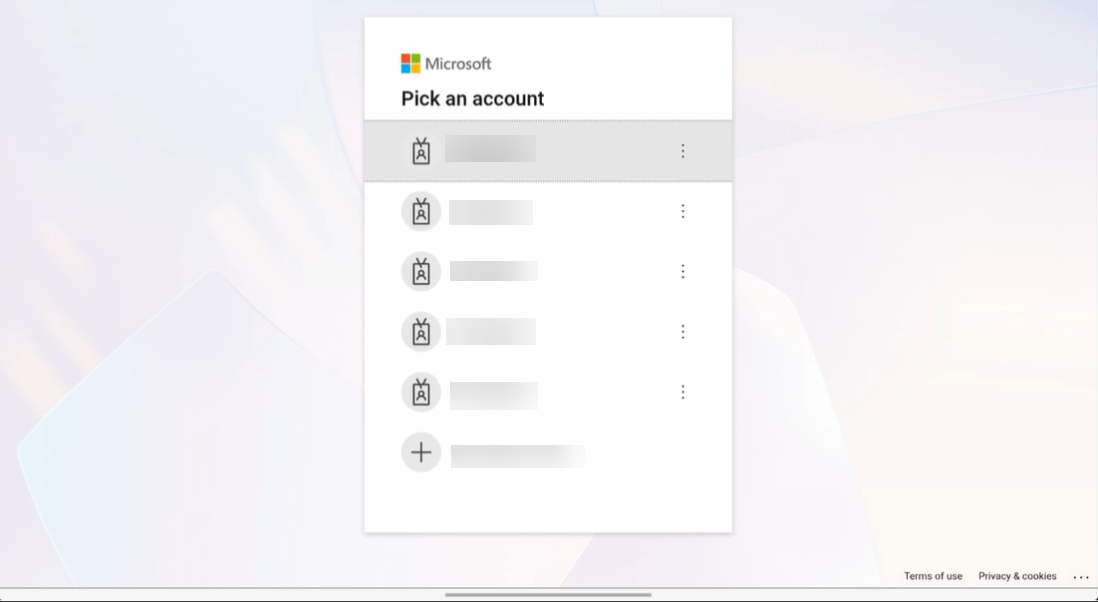
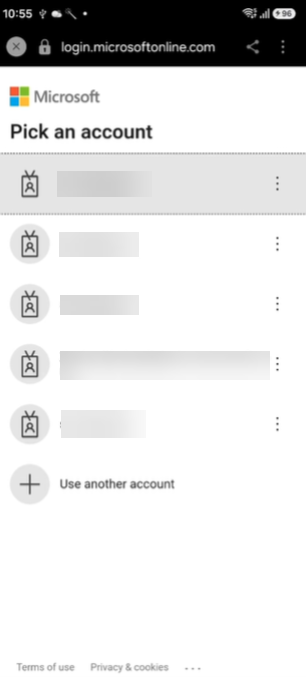
The “Pick an account” dialog open. Select account or add an account and enter the password.
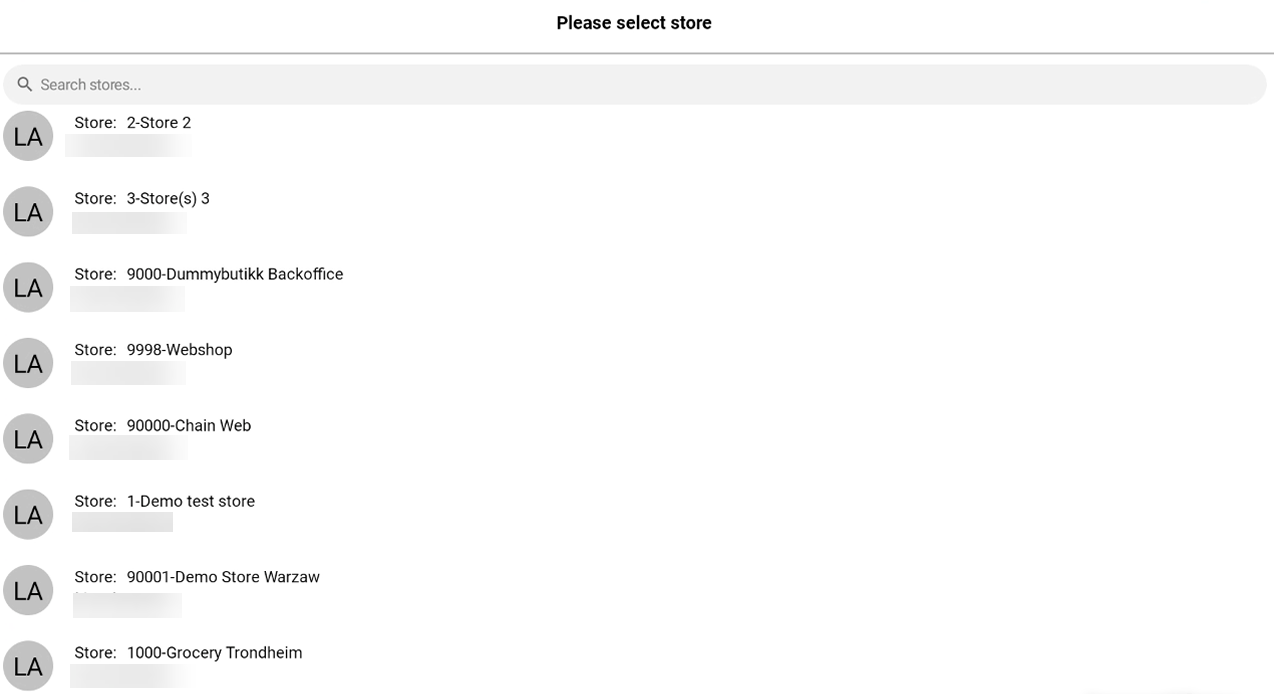
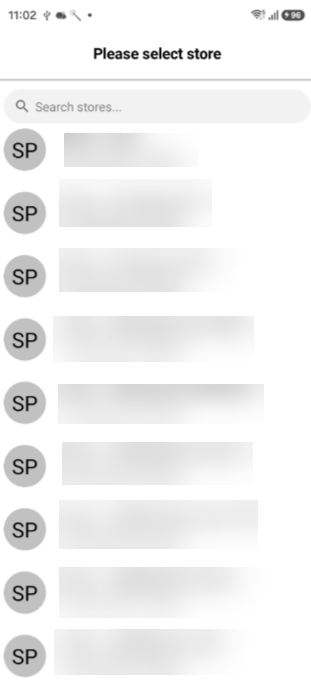
If you have access to several stores, the Please select store view open. Select the desired store. If user only has access to 1 store, the user is logged in directly.
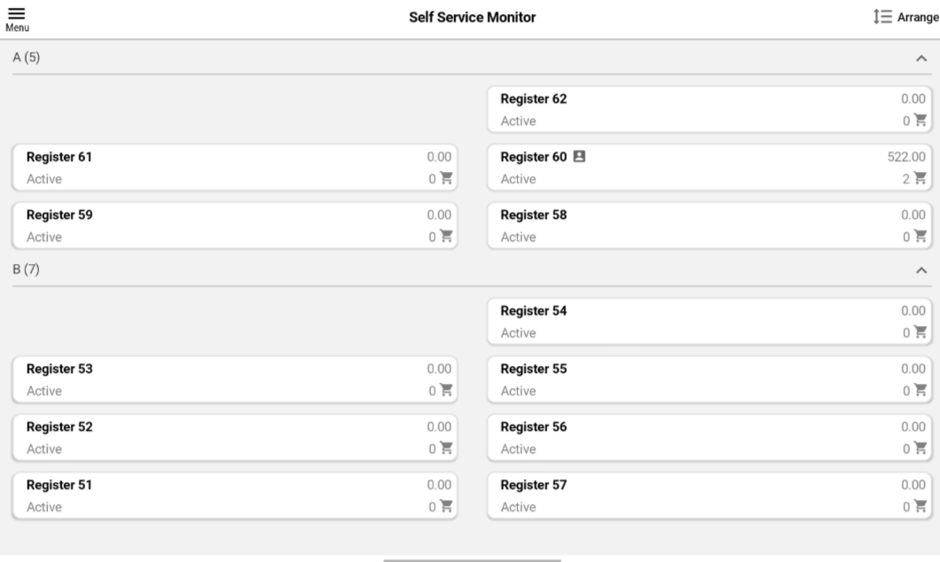
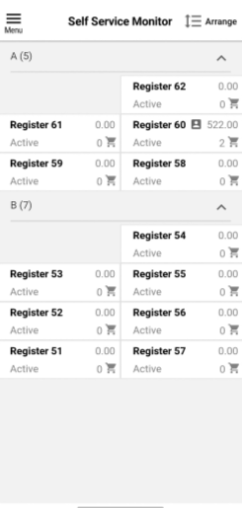
This opens the Monitor App for selected store. How it looks depends on the configured layout; Static or Non static. The example below display an overview of the cash registers in the store in a static layout. Static layout means that the cash register stays in the same place on the screen at all times. Non static layout means that whatever cash register requires attention will jump to the top.
Login with cashier
In order to log in with cashier, the device must be connected to the store network. If the device is on 4G/5G network, it must have a VPN enabled that provides access to the server network for authentication.
Tap Login with cashier.
This opens a new view where you are asked to scan the QR code. The QR code contains the store identifier. Ask your IT administrator for help with getting the correct QR code if one have not been provided.
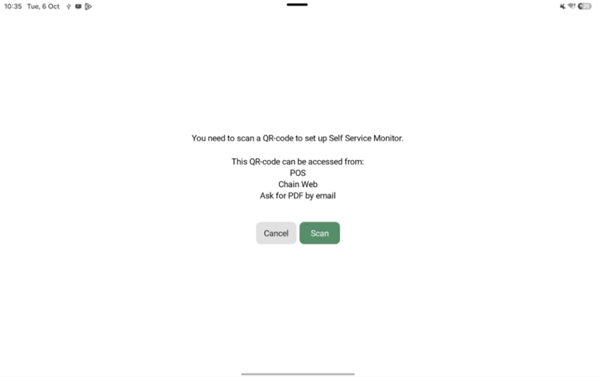
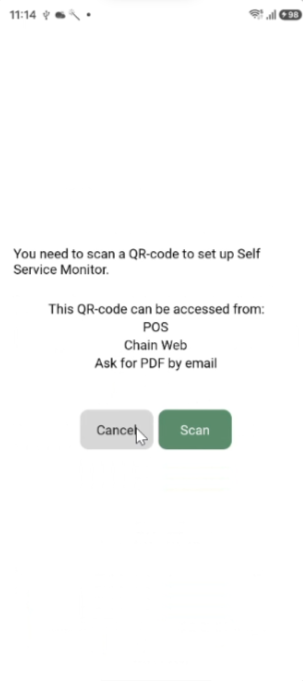
Tap Scan, and scan the QR code. Then Monitor App starts.
Sign out
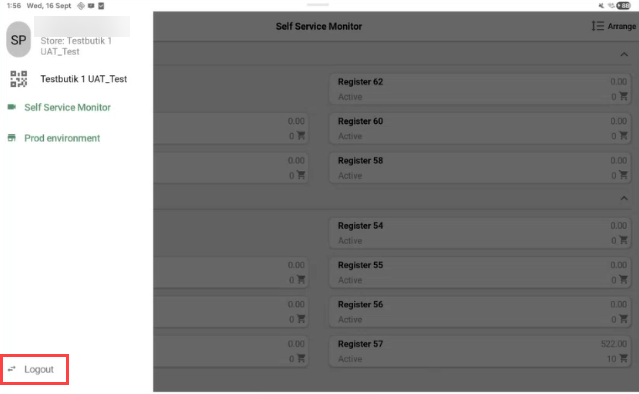
Tap the “Menu icon” at the top left corner. This will open the menu to the left

Tap Logout to sign out.