The Home screen is the first screen you see after you log in. From here you can search for items, scan a barcode, resume a transaction you paused earlier, and open your most-used actions.
Other features are grouped in the Create tab at the bottom of the screen.
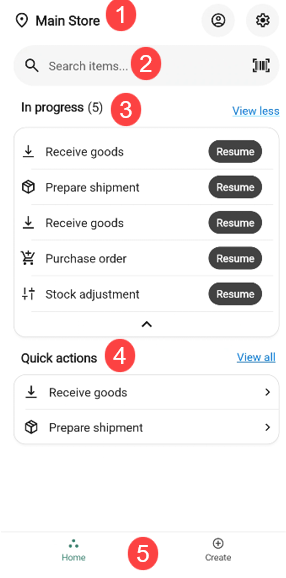
The header
The top of the Home screen shows:
Store name with a location pin — the store you are currently signed in to.
Profile icon (circle with a person) opens your profile bottom sheet where you can open Preferences or Log out. See Profile and Preferences.
Settings icon (gear) opens System settings (main item identifier).
Searching and scanning from the Home screen
Just below the header there is a Search items… bar.
Tap the search field to open the full Search items screen. See Searching for an item
Tap the scan icon on the right of the search field to open the camera and scan a barcode. When a barcode is recognized, the app opens the item’s Item details page. See Scanning an item
In progress
The In progress section lists transactions you have paused, with a count in brackets (for example, In progress (2)).
Each row shows the transaction type (for example, Receive goods) and a Resume button.
Tap Resume on a row to open that transaction where you left off.
If the list is long, tap the chevron at the bottom of the section to expand it, or tap View all at the top-right to open the full list. If you have no paused transactions, the In progress section is hidden.
Quick actions
Below In progress is the Quick actions section — shortcuts to the transactions you use most often.
Tap any action to start that transaction.
Tap View all at the top-right to open the full list of transactions in the Create tab.
Bottom navigation
Two tabs at the bottom of every main screen let you switch between the top-level areas of the app:
Home - this screen.

Create - Opens a grouped list of every transaction and action (Item, Procurement, Inventory).

The Create tab
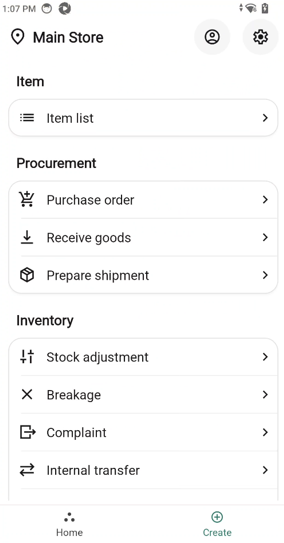
The Create tab lists every transaction and action available in the app, grouped by category. It is the entry point for any flow that is not already on the Home screen as a quick action.
Opening the Create tab
In the bottom navigation, tap Create.

The Create screen opens with grouped sections of actions.
Sections and actions
Actions are grouped by category. Tap any row to start that action. Each row has a chevron on the right.
Note: Only actions available in the current version of the app are listed below. Other items may appear in the design but are not yet active.
Item:
Item list - build and work with a list of items.
Procurement:
Purchase order - create or continue a purchase order to a supplier.
Receive goods - register goods arriving at the store. Covers Manual receival, Receive order, Receive package.
Prepare shipment - prepare a shipment of goods leaving the store.
Inventory:
Stock adjustment - adjust the recorded stock of an item to match reality.
Breakage - register items that are broken or unsellable.
Complaint - register a complaint against an item.
Internal transfer - move stock between locations.
Internal use - register items used internally (for example, by staff).
Stocktaking - run full count. Covers both Count list and Count groups.
Temporary storage - manage items in temporary storage. Covers both Put away and Unpack.