The Monitor web app runs in a browser on a tablet, PC or wall display. Nothing needs to be installed. A user can log in if they:
Have a user in EG Retail Shell.
Have the permission “Handle surveillance requests” for the store they will monitor.
The language in Self Service Monitor follows the language set in the user's Shell profile. The app is available in English, Norwegian, Swedish, Danish and Finnish. Dates, amounts and times follow the region of the profile.
Log in
Open the address of the Monitor App.
The browser is sent to the EG Retail sign-in page. Sign in with your EG Retail account.
Select the store. Where many stores are available, the list can be filtered with the Search name or number… field. Stores opened recently are listed first under Recent; the others are under All stores.
If a store cannot be opened, the app shows: "Not authorized for store {storeNo}." The user needs permission for that store.
If no stores are available, the app shows "No stores configured for this tenant."
Switching store and signing out
Open the menu (the hamburger button in the top left corner). From the menu the user can:
Change store – change to another store the user has access to.
Configure store layout – open the store layout editor. Only shown to users with the permission Configure store layout.
Sound – switch the alert sound on or off.
Theme – switch between Light theme (the default) and Dark theme.
Sign out – log out of the app.
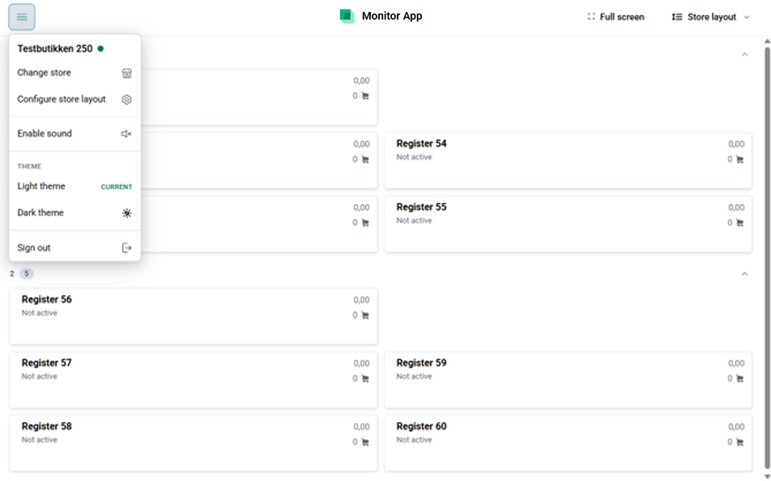
The menu: store name with connection status, Change store, Configure layout, sound, theme and Sign out