The fixed store layout is configured in the app by users who have the permission Configure store layout for the store. The permission only works together with Handle surveillance requests for the same store. Users without it do not see Configure store layout in the menu.
Open the editor
From the monitor: open the menu and select Configure store layout.
From the store picker: select Configure store layouts. The overview Store layout lists the stores you may configure with the number of registers and who changed the layout and when. Select Edit to change a layout or Create for a store that shows No layout.
If you may not configure the store, the app shows "You may not configure this store's layout."
Place the registers
The editor shows one grid for each group. Each square is a register or a gap.
Type the register number on a square, as the registers stand in the store. An empty square stays as a gap.
Select + after the last column or the last row to add a column or a row. Remove last row and Remove last column remove an empty row or column.
Type a name in the group's name field. Add group adds another group and Remove group removes one.
To move a register, drag it by its handle to another square. If you drop it on another register, the two registers swap places. This also works on a touch screen.
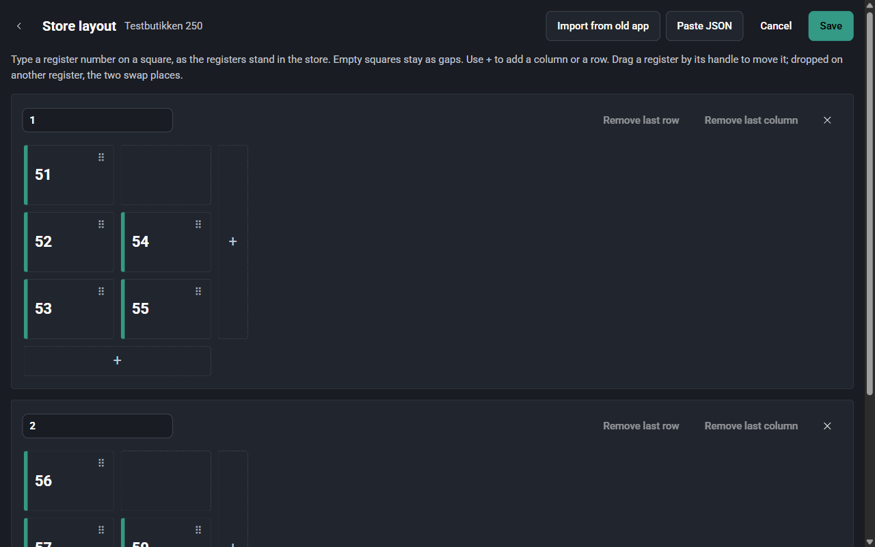
The store layout editor: groups of squares with register numbers, gaps, and the buttons Import from old app, Paste JSON, Cancel and Save
Import from the old app
Import from old app loads the layout the old monitor app has for the store. The app shows "Registers loaded: {count}. Check them and save them." Nothing is saved until Save is selected. If the old app has no layout for the store the app shows "The old monitor app has no layout for this store."
Paste JSON lets you paste the ‘posUnitsLayout’ setting from Tenant Admin, for all stores or for just this store. Select Use pasted layout to load it into the editor.
In the Store layouts overview, Import all from old app imports the old layout for every store that does not have one yet. Existing layouts are kept. The app reports which stores were imported, already had a layout, were not valid or are not yours.
Save, cancel and remove
Save stores the layout. Every monitor that has the store open follows the new layout without reloading.
Cancel, or the back arrow, leaves the editor without saving.
Remove layout removes the layout after the confirmation "Remove the layout? Monitors of this store return to the dynamic views."
Squares with a problem are marked in red and block saving: "Not a register number", "Used twice", or "Two groups have this name." The app shows "Fix the squares marked in red before saving."
If the layout cannot be saved the app shows "The layout could not be saved." or "Layouts cannot be saved: this tenant has no layout database."