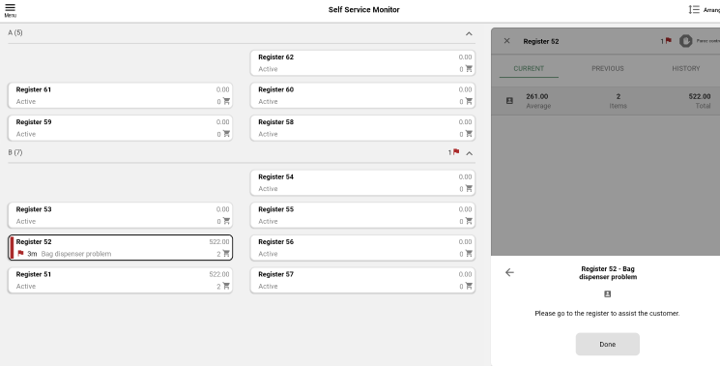
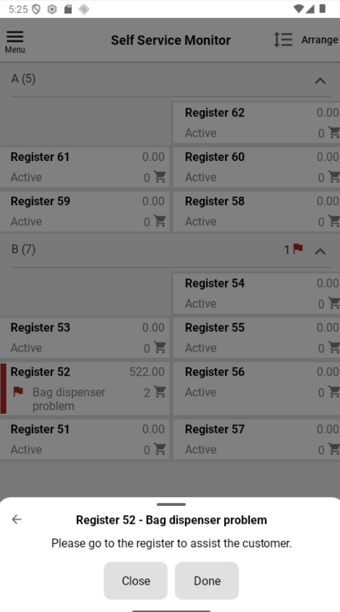
The notifications on this page are only used in stores with a specific setup: duty-free and airport stores and stores with bag dispensers. They do not appear in every installation.
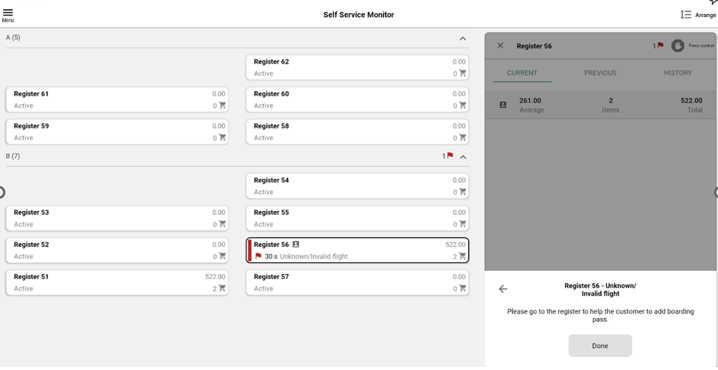
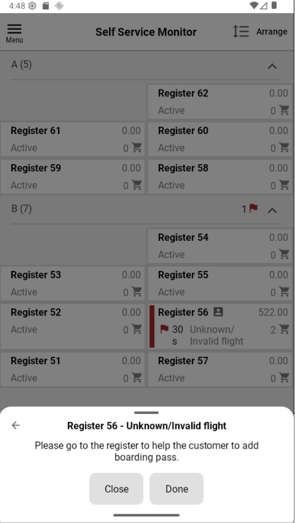
Unknown or Invalid flight - notification
Shown when the customer's flight or boarding pass cannot be validated.
Tap the notification to open its details.
The message: "Please go to the register to help the customer to add boarding pass" is shown.
Help the customer, then tap Done.
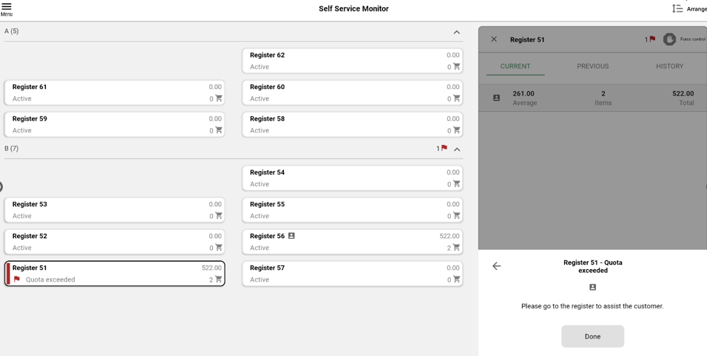
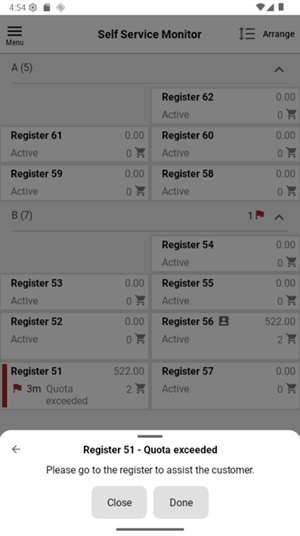
Quota exceeded - notification
Shown when the customer's purchase exceeds the permitted duty-free quota.
Tap the notification to open its details.
The message: "Please go to the register to assist the customer" is shown.
Help the customer, then tap Done.
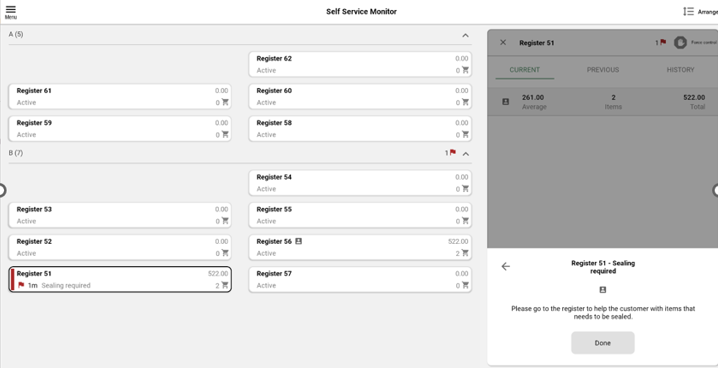
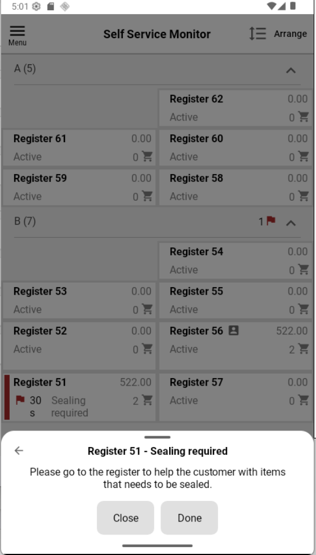
Sealing required - notification
Shown when items in the sale must be sealed before the customer can leave with them.
Tap the notification to open its details.
The message: "Please go to the register to help the customer with items that needs to be sealed" is shown.
Seal the items, then tap Done.
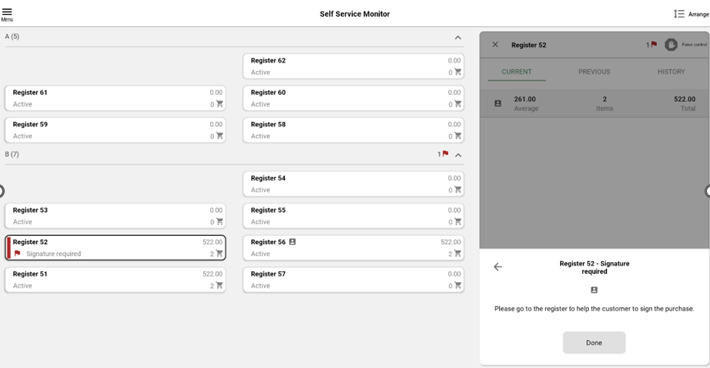
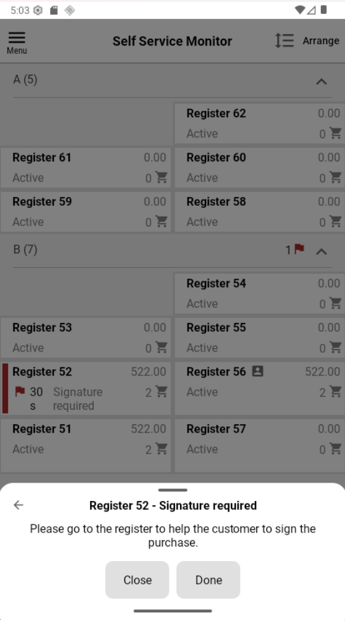
Signature required - notification
Shown when the purchase requires the customer's signature.
Tap the notification to open its details.
Message: "Please go to the register to help the customer to sign the purchase” is shown.
Help the customer sing, then tap Done.
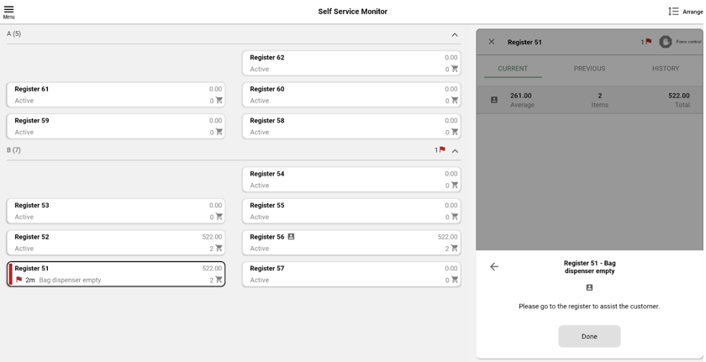
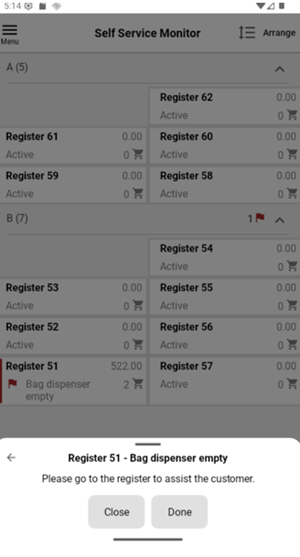
Bag dispenser empty - notification
Shown when the bag dispenser at the self-checkout is out of bags.
Tap the notification to open its details.
The message: "Please go to the register to assist the customer" is shown.
Help the customer, then tap Done.
Bag dispenser problem - notification
Shown when the bag dispenser reports a fault.
Tap the notification to open its details.
The message: "Please go to the register to assist the customer" is shown.
Help the customer, then tap Done.