You can view the service order details by opening the service order.
Desired order can be found by using the filter and search options within the columns, or scroll through the list manually.
Click the Order number in the “Order number” column of the service order you want to view.

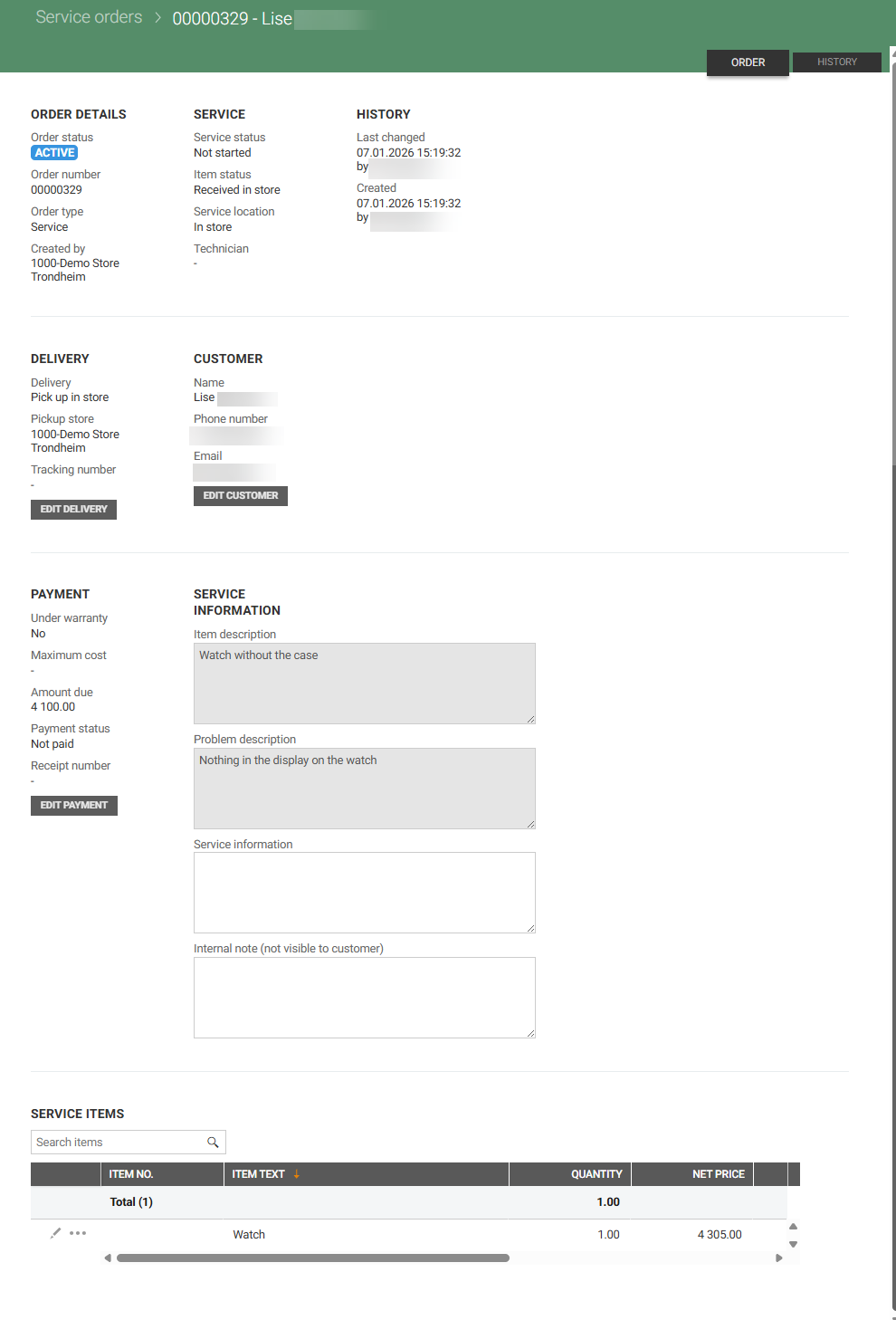
This opens a new view with 2 tabs, Order and History.
Order tab
The Order tab displays all details related to the selected service order. At the bottom of the view, you will find a toolbar with functions that allow you to process and manage the order.
History tab
The History tab enables both Stores and Customer service to follow the full timeline of the order.
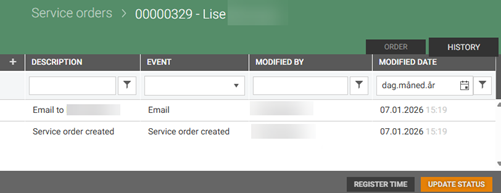
It displays actions/events performed on the service order. This includes these events:
Service order created
Email
Details
Order status
Service status
Item status
Service note
SMS