Some of the service order details can be edited, but some information is read-only (cannot be edited).
The fields in the Order details, Service and History sections are read-only fields and cannot be modified.
At the bottom of the view you will find a toolbar with functions for processing the service order. See Service order functions for more information.
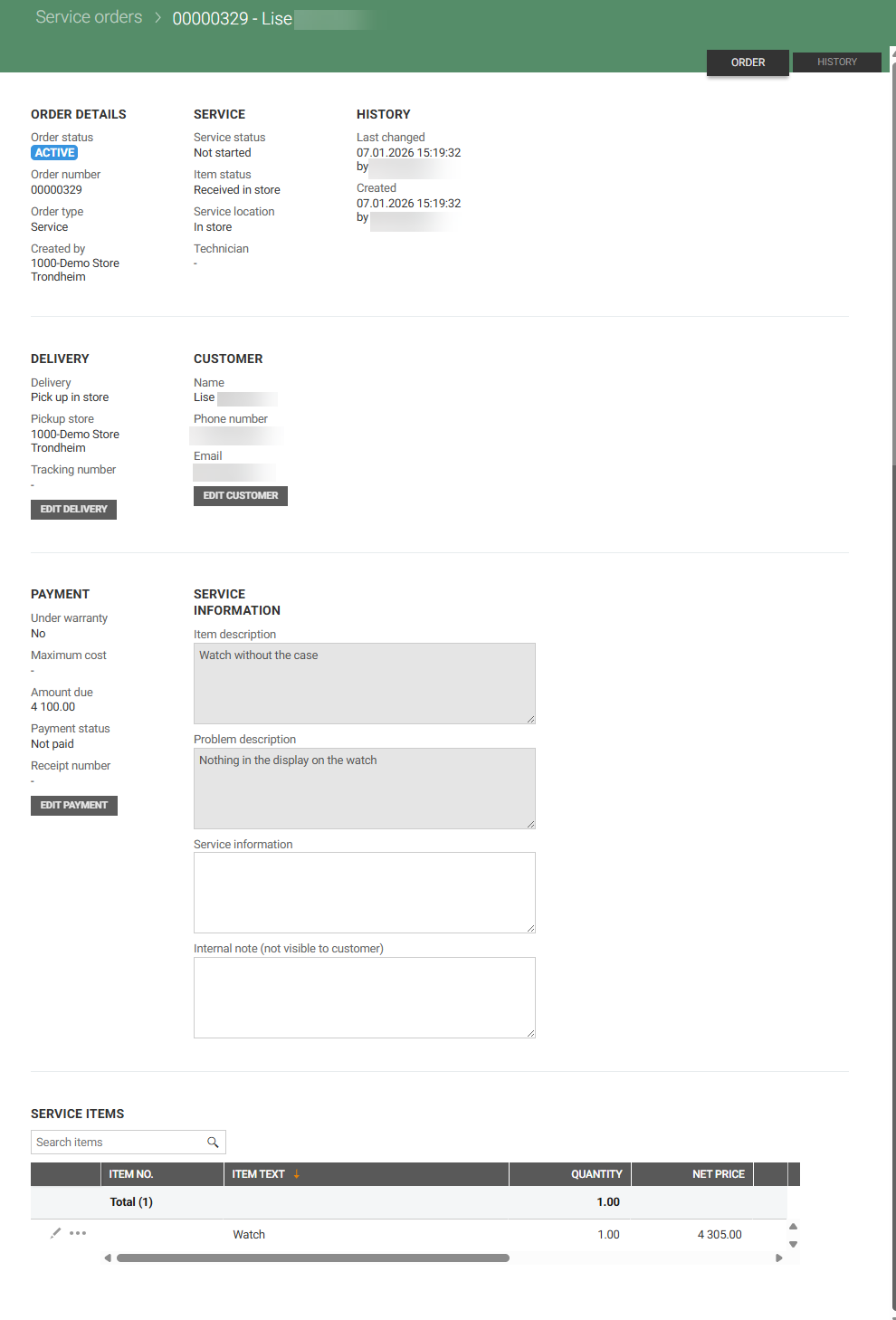
Service order details
Below you will find a description of how to edit service order details. You can expand each Edit option to see more details.
Edit delivery
Click the Edit delivery button to edit delivery. This opens the “Edit delivery” dialog.
Delivery method can be changed. The fields in the dialog will update based on the selected delivery method.
Pickup in store:
Select the pickup store.
Optionally, add a tracking number.
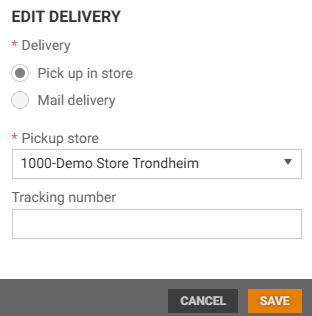
Edit delivery dialog
Mail delivery:
Enter or update the address information.
Mandatory fields:
Address line 1
Postal code
City
Country
Optionally, add Address line 2 and/or tracking number.
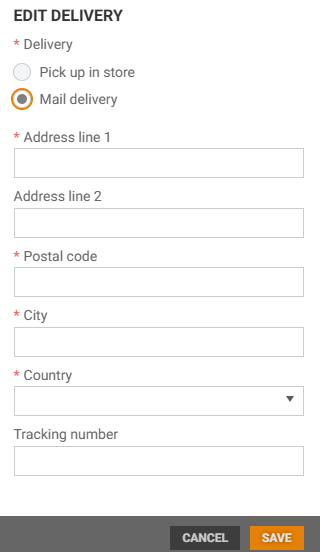
Click Save to apply the changes.
Edit customer
To update customer details, click the Edit customer button. This will open the “Edit customer” dialog.
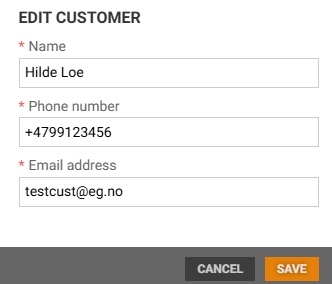
Edit customer dialog
You can change Name, Phone number and Email address.
Click Save to apply the changes.
Edit payment
To modify payment details, click the Edit payment button. This opens the “Edit payment” dialog.
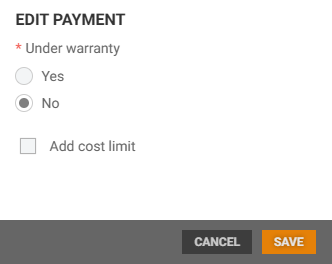
You can update:
Under warranty: Select Yes or No.
Add cost limit: Check or uncheck the box.
If checked, the “Maximum cost” field will appear and must be filled in.
Click Save to apply the changes.
Service information
If order type ”Internal repair” or “Repair” are selected, a Reason code field appears at the top of the Service information section. It can be used to attach an active complaint reason code.
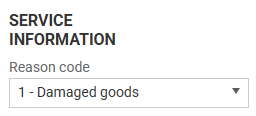
“Item description” and “Problem description” fields are read-only (cannot be edited).
“Service information” and “Internal note” (not visible to customer) can be added or modified.
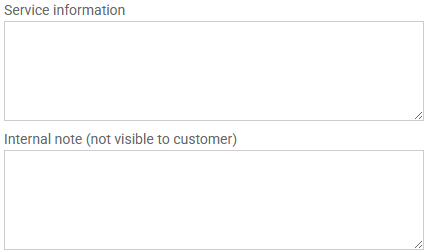
Fields to add service information and internal note
Changes to these fields are applied by clicking the Save button at the right in the toolbar.
SERVICE ITEMS
The Service items section displays the item(s) added to the service order. Items can be added, edited or removed.

Add service item
To add service item:
Start typing item in the “Search item” field. You can search by text or GTIN.
The “Find item” dialog will open and display search results.
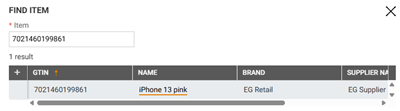
Click the desired item to add it to the Service item table.
Items are saved automatically.
Edit service item
To edit a service item:
Click the “Pencil icon” on the item row.
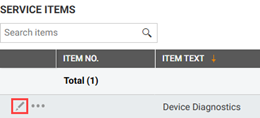
The “Edit item” dialog will open.
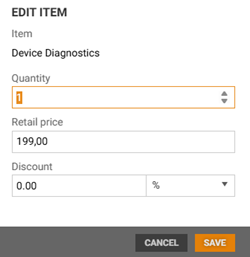
You can update: Quantity and Retail price.
Discount can also be added/edited. There are 3 discount types: %, Amount and New price.
Click Save to apply the changes.
Remove item
To remove an item:
Click the More icon (…) on the item row.
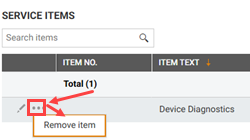
Select Remove item.
The “Remove item” dialog will open.
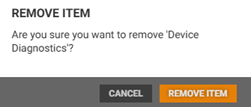
Click Remove item to confirm.