To create a new service order, click the New service order button.
This will open the “New service order” view, where you can enter details such as order type, delivery method, customer information, payment and service information.
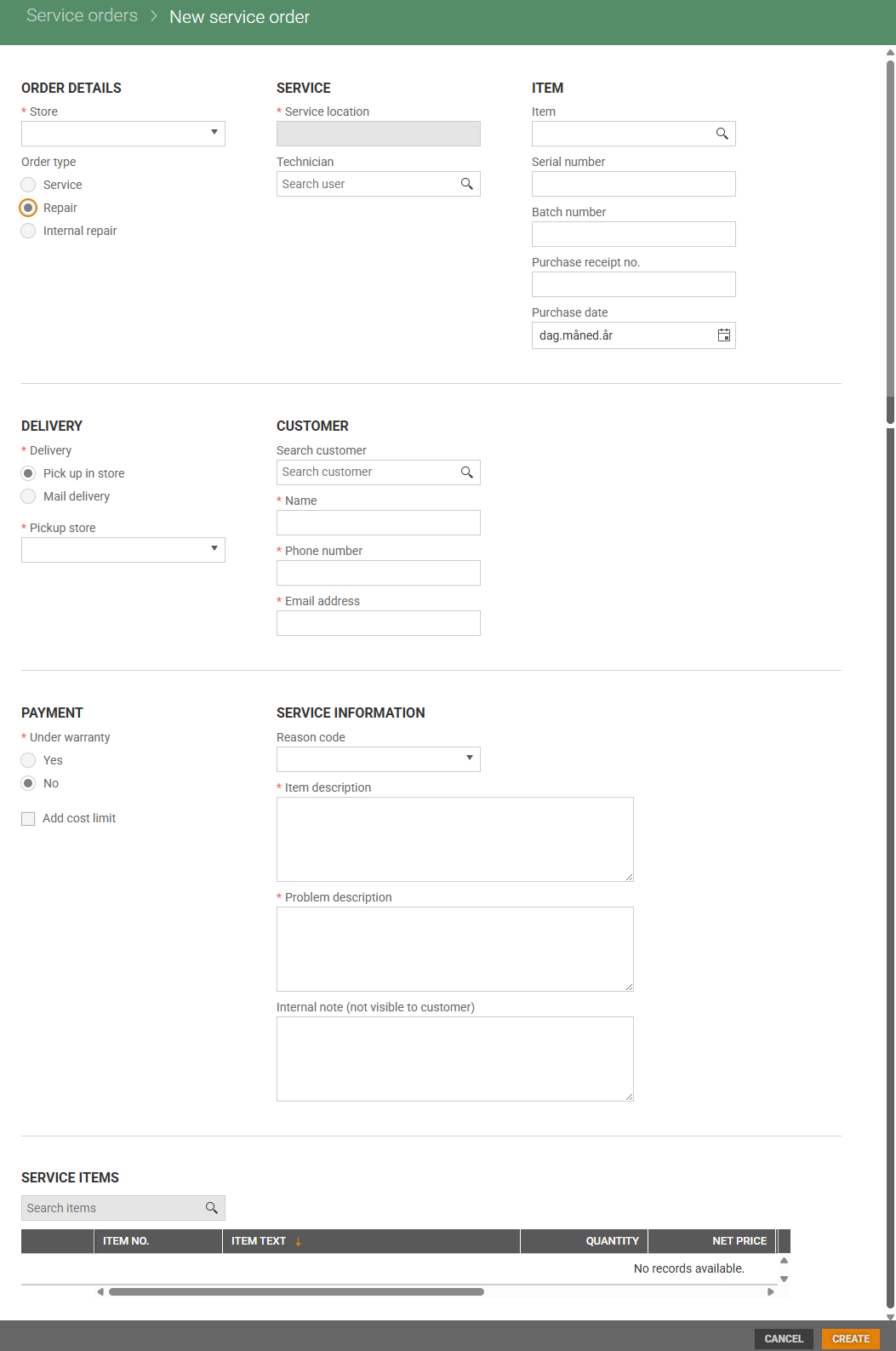
Below you will find a description of how to create a new service order by expanding the “New service order details”. Available fields are depending on the selected order type.
New service order details
ORDER DETAILS
Store - Users with access more than one store must select the relevant store.
Order type - Start selecting order type. Available options:
Service (default)
Repair
Internal repair
The selected order type determines which fields are displayed in the rest of the view.
SERVICE
Service location - Tick the relevant Service location.
Technician (optional) - A technician can be added to the service order. Search for the technician by starting to write the search text. Search result is provided in the “Search user” dialog. Search result can be limited by writing more text in the search field. Choose desired technician.
ITEM (for order type Repair and Internal repair)
If you select Repair or Internal repair, the Item section will appear, with the following fields:
Item: Search for the item and select it from the search result.
Serial number: You may enter the item’s serial number.
Batch number: You may enter batch number, it is a unique number identifying the item.
Purchase receipt no.: You may enter the receipt number for the purchase.
Purchase date: You may enter purchase date.
DELIVERY (for order type Service and Repair)
Select the preferred delivery method:
Pickup in store (default): You must select a Pickup store. By default, this is the same as the selected store, but you can select another store form the drop-down list or by typing the store name or number.
Mail delivery: If selected , address fields will appear. All fields are mandatory except “Address line 2”.
CUSTOMER (for order type Service and Repair)
You can search for an existing customer in the “Search customer” field, using name, business name, customer number or phone number. If a match is found, the remaining fields will be auto-filled.
If the customer is not found, you must manually enter:
Name
Phone number
Email address
ADDRESS
The address section is only visible if Mail delivery is selected.
If an existing customer is linked, the address will be pre-filled with the customer’s delivery address (if available). You can overwrite the address if needed.
All the address fields are mandatory except Address line 2.
PAYMENT (for order type: Service and Repair)
Under warranty*: select Yes or No (default).
Add cost limit: Check this box if the service has a cost limit. The “Maximum cost” field will then appear.
Maximum cost *: Enter the maximum allowed cost for the service.
SERVICE INFORMATION
Reason code - If order type ”Internal repair” or “Repair” are selected, a complaint reason code can be selected, and attached it to the service order.
Item description* (mandatory): Provide a description of the service item.
Problem description* (mandatory): Describe the issue with the item.
Internal note (not visible to customers): Use this field to add internal comments or notes related to the service.
SERVICE ITEMS
You can add service items by searching for them. The result will appear in the “Find item” dialog. Click the desired item to add it to the order.
CREATE ORDER
Once all required information is entered, click the Create button. The service order will be created, and the order details will open.
An email with receipt and order confirmation will be sent to the customer when the service order is created.
An email is automatically sent to the customer when the order is created.