The sale can be paid for using Walley. The customer completes the payment in the Walley checkout on their own phone, either by scanning a QR code shown in Mobile POS or by opening a payment link sent to them by SMS.
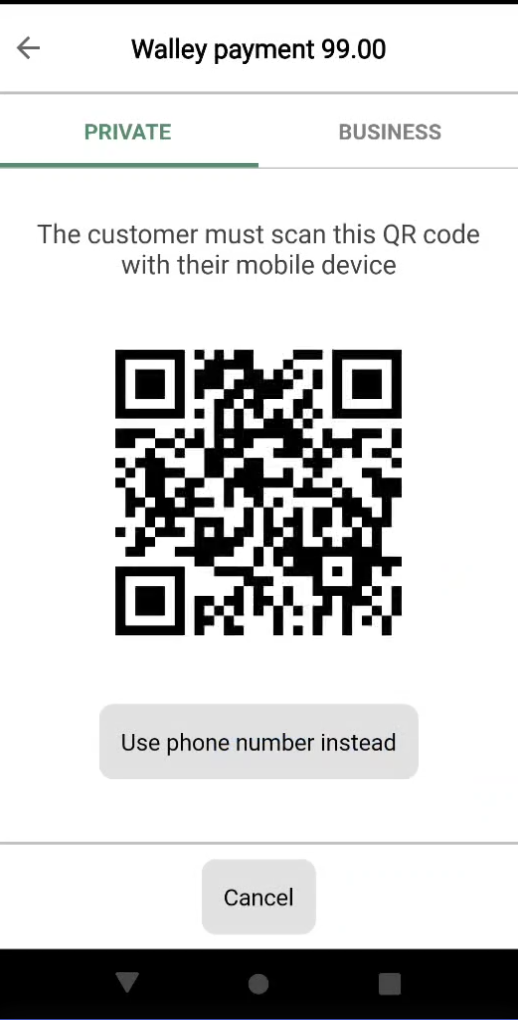
Walley supports both private and business purchases. The cashier chooses which one using the Private and Business tabs.
Enabling Walley payment
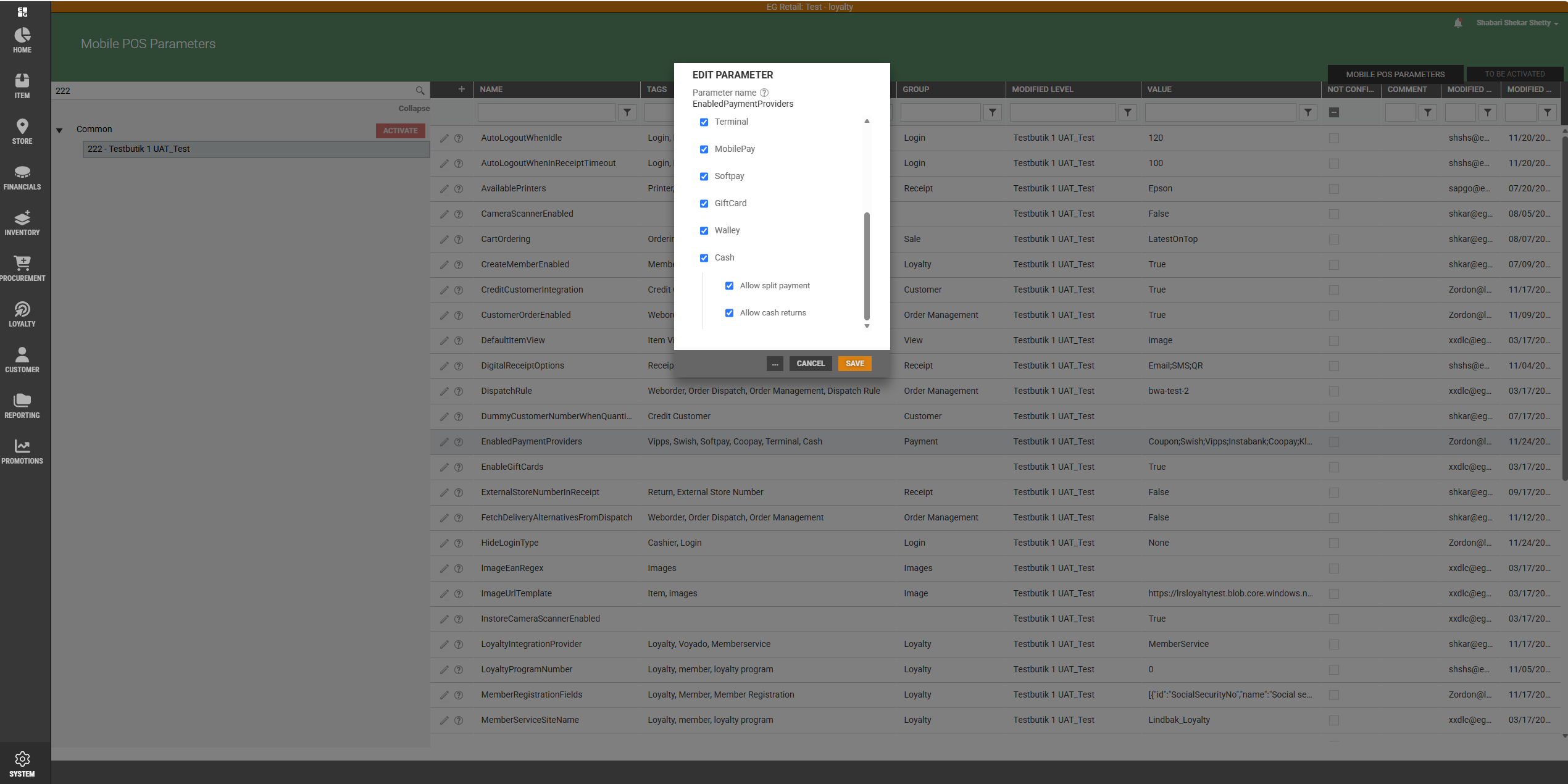
Walley is enabled in Mobile POS Management, in the EnabledPaymentProviders parameter.
Open Mobile POS Parameters and edit the EnabledPaymentProviders parameter.
Tick Walley.
Tap on Save.
For more information on how to change and activate configuration, see Configuration.
Walley Payment
Pay with QR code
On the "Finish payment" screen, tap on the Walley button.
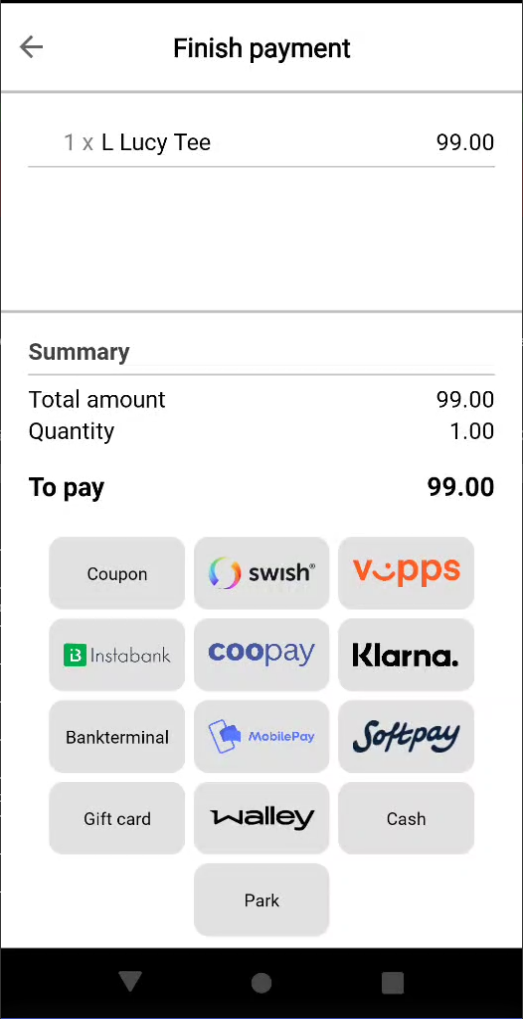
The "Walley payment" screen opens and shows the amount to pay and a QR code. The Private tab is selected. E.g., "Walley payment 99.00".
For a business purchase, tap on the Business tab. A new QR code is generated for a business purchase.
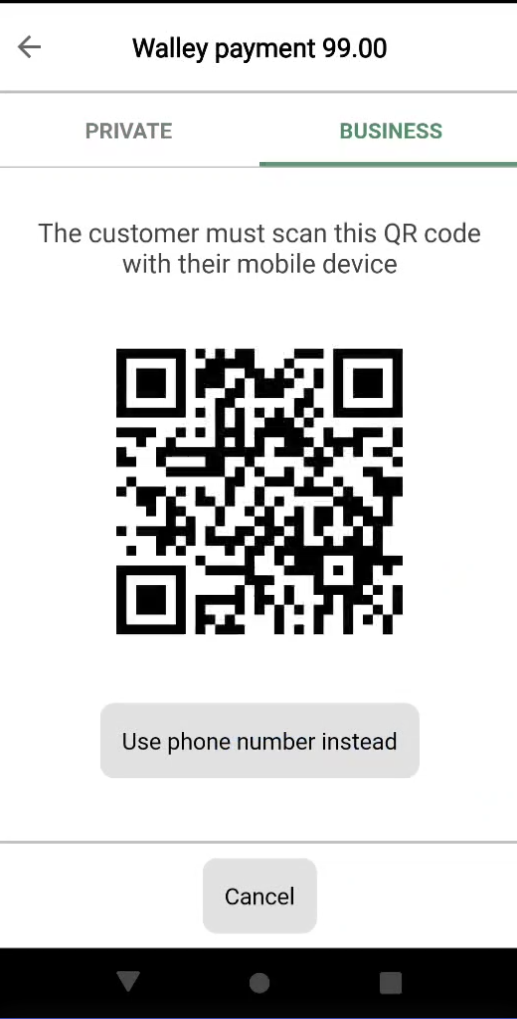
The customer scans the QR code with their phone and completes the payment in the Walley checkout.
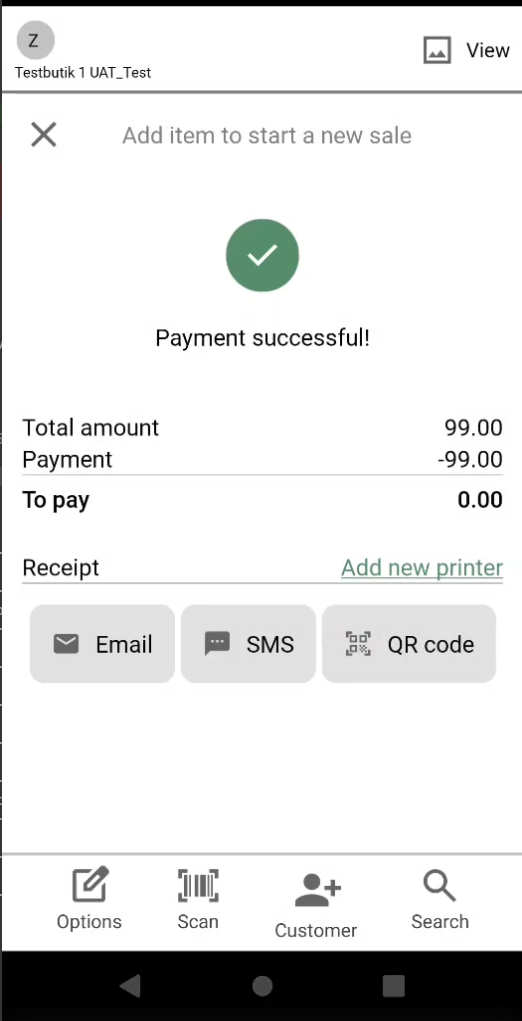
When the payment is approved, "Payment successful!" is displayed and the payment is shown in the summary.
Select how the customer wants to receive the receipt.
Pay with phone number
On the "Walley payment" screen, tap on Use phone number below the QR code instead.
The "Pay with Walley" dialog opens and shows the amount to pay. The tab selected on the QR code screen (Private or Business) stays selected.
Enter the customer's phone number in the Enter phone number field. If a customer or member with a saved phone number is added to the sale, the number is prefilled and can be overwritten.
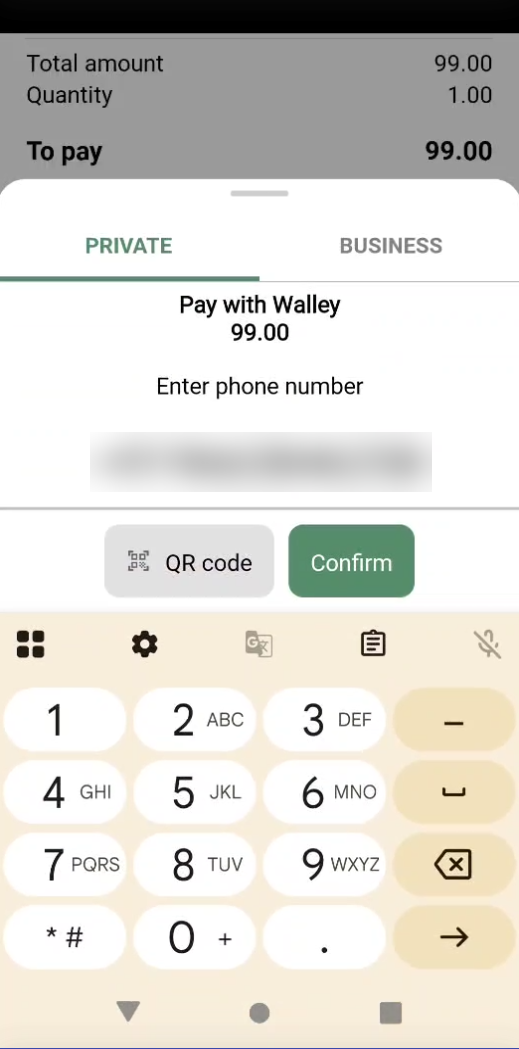
Tap on Confirm. The customer receives an SMS with a link to the Walley checkout.
The "Walley payment 99.00 in progress" dialog shows "Awaiting confirmation from customer with phone no …" while the customer completes the payment.
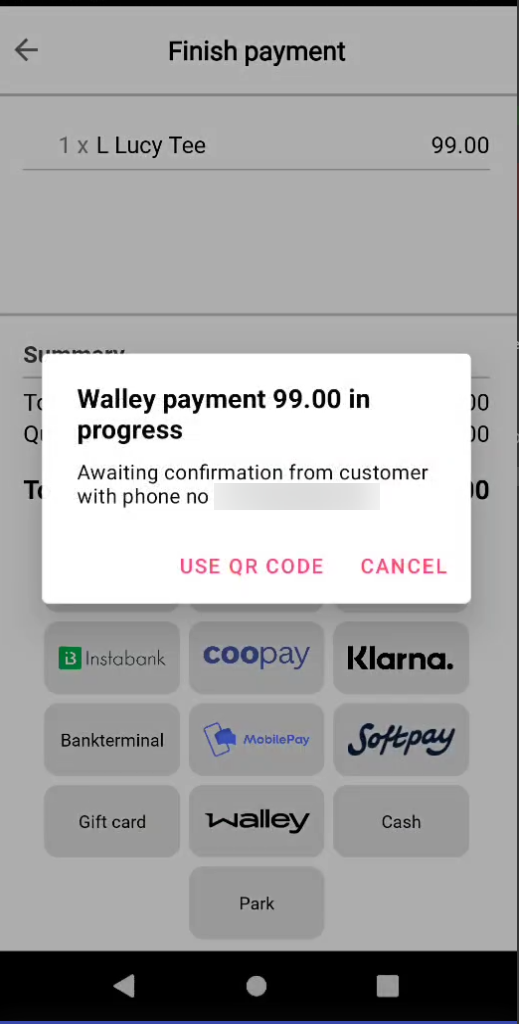
When the payment is approved, "Payment successful!" is displayed.
Select how the customer wants to receive the receipt.
To go back to the QR code, tap on QR code in the "Pay with Walley" dialog, or on Use QR code in the "in progress" dialog.
Business purchase for a business customer
When a business customer with an organization number is added to the sale and the Business tab is selected, the organization number is prefilled in the Walley checkout.
Cancel a Walley payment
Tap on Cancel on the "Walley payment" screen, or on Cancel in the "in progress" dialog, to stop the payment and go back to the "Finish payment" screen. The sale is not changed and can be paid with another payment method.
Return of a receipt paid with Walley
A receipt paid with Walley can be returned in full or in part. Walley refunds the returned items, not an amount: each returned item is refunded at its own price on the original Walley purchase.
Start the return and retrieve the receipt paid with Walley.
Select the items to return. To return the whole receipt, select all items.
The "Finish payment" screen shows the returned items with a minus sign. Tap on the Walley button. No QR code or phone number is needed. E.g. If 1 x L Lucy Tee is returned, To pay is -99.00.
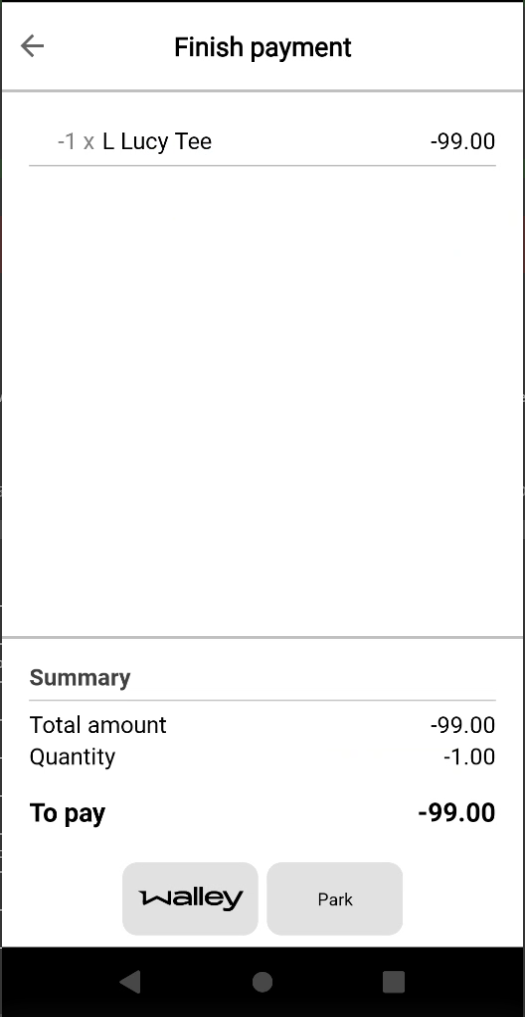
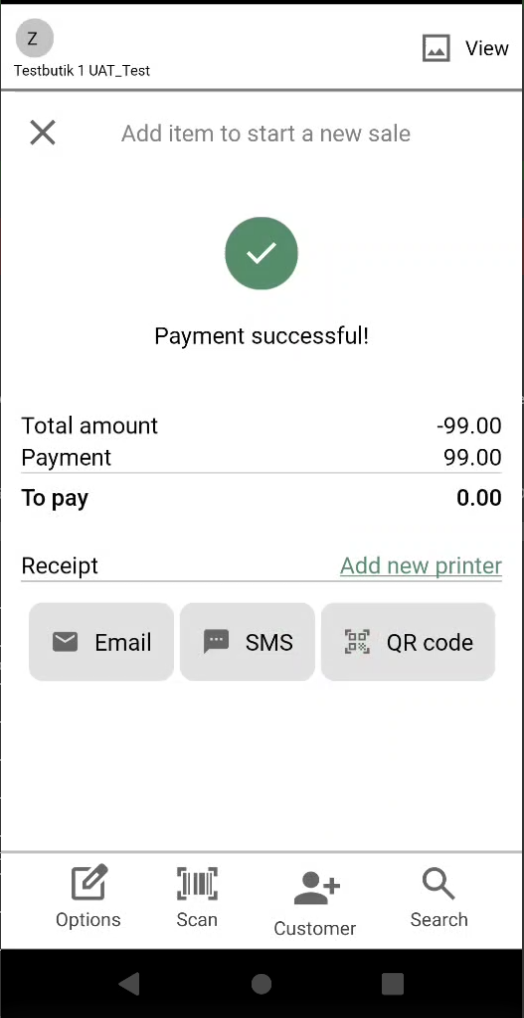
The refund is completed straight away and "Payment successful!" is displayed. The summary shows the total amount of the return with a minus sign and the refunded payment. Select how the customer wants to receive the receipt.
The remaining items on the receipt can be returned later in a separate return.
The Walley refund is not split with cash. See Payment with Cash