The sale can be paid for using cash. Cash is a manual payment: the cashier receives the cash from the customer and registers the amount in Mobile POS. Mobile POS calculates the change to give back.
The cash payment is registered in the sale when you confirm the amount, and is sent to POS when the sale is completed. Until then, you can still change the sale, change or remove the cash payment, park the sale or cancel it.
Enabling cash payment
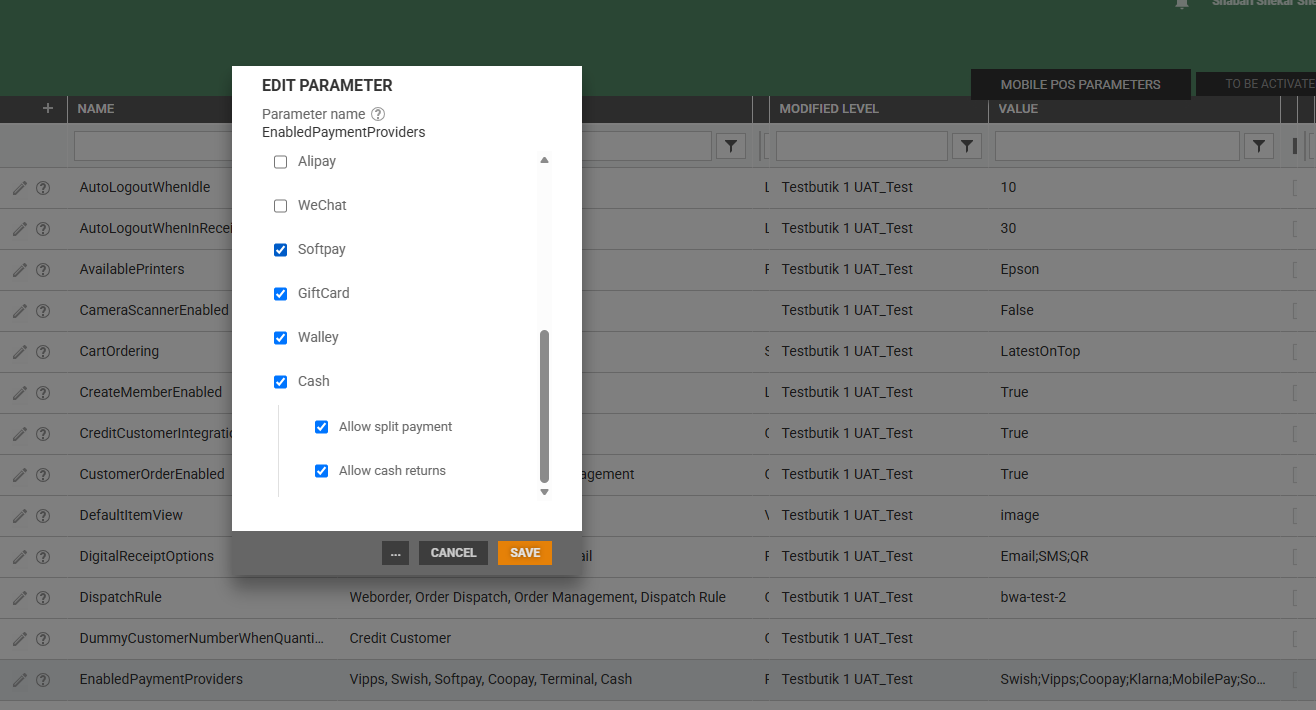
Cash is enabled in Mobile POS Management, in the EnabledPaymentProviders parameter.
Open Mobile POS Parameters and edit the EnabledPaymentProviders parameter.
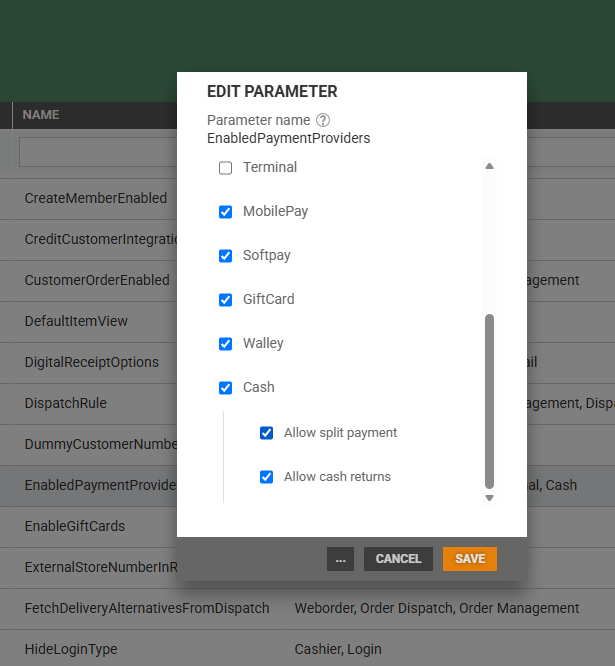
Tick Cash. Two additional options become available. Both are off by default:
Allow split payment – allows a sale to be split between cash and another payment method. When it is off, the cash amount must cover the full sale total.
Allow cash returns – makes Cash available as a refund method when processing returns.
Tap on Save.
For more information on how to change and activate configuration, see Configuration.
Cash Payment
Cash given is equal to the sale total
On the "Finish payment" screen, tap on the Cash button.
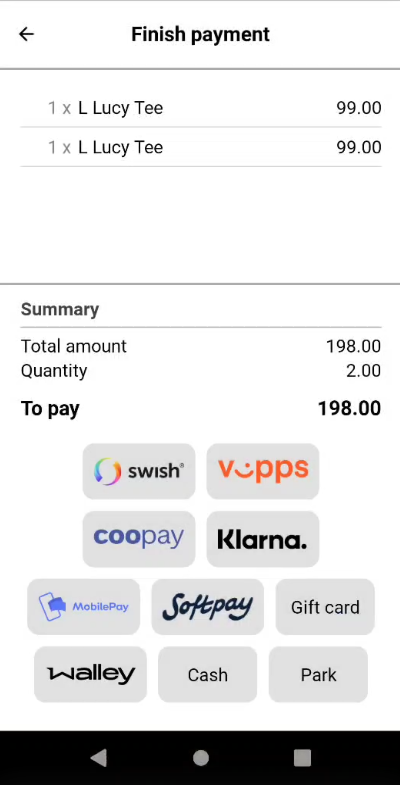
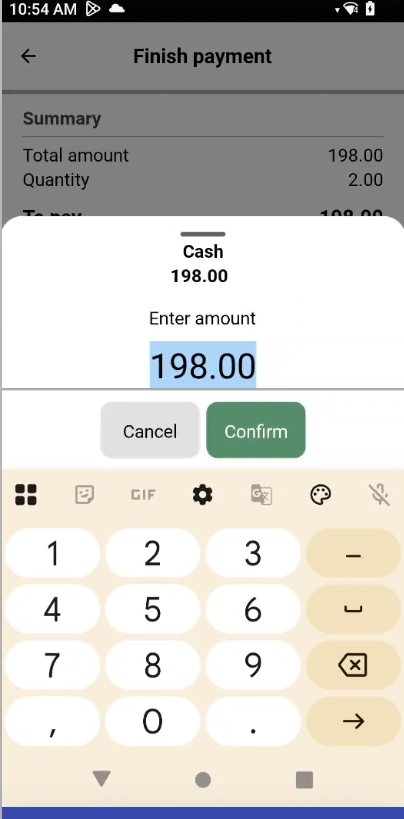
The "Cash" dialog opens. The amount to pay is prefilled in the Enter amount field. Tap on the Confirm button.
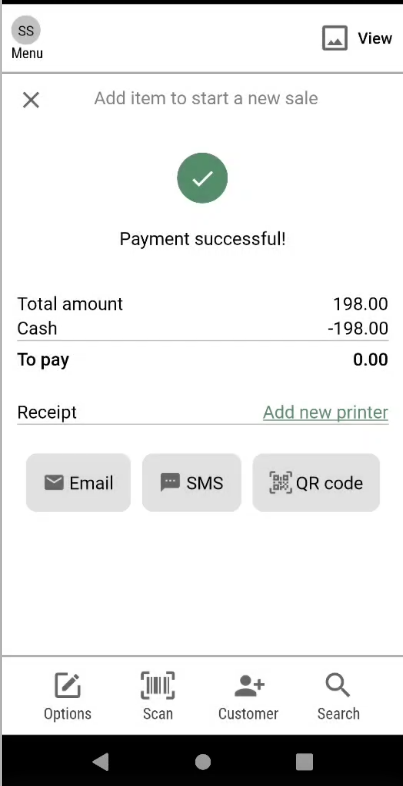
E.g. If the sale total is 198 NOK and the customer pays 198 NOK, no change is to be given back.
"Payment successful!" is displayed, and the cash payment is shown in the summary. Select how the customer wants to receive the receipt.
Cash given is more than the sale total
On the "Finish payment" screen, tap on the Cash button.
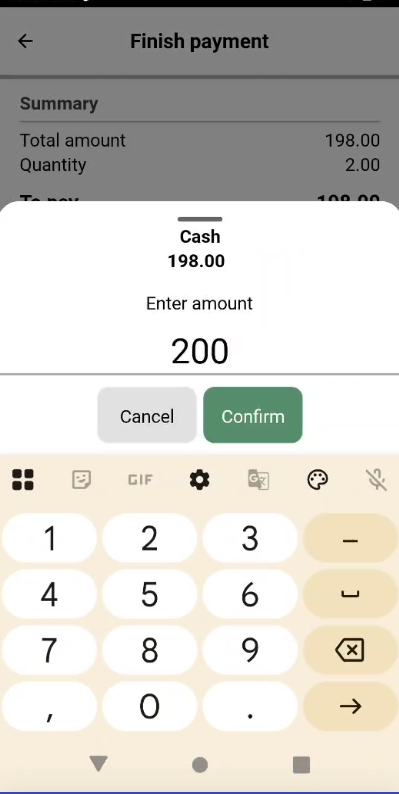
The "Cash" dialog opens. Replace the prefilled amount with the amount received from the customer and tap on the Confirm button.
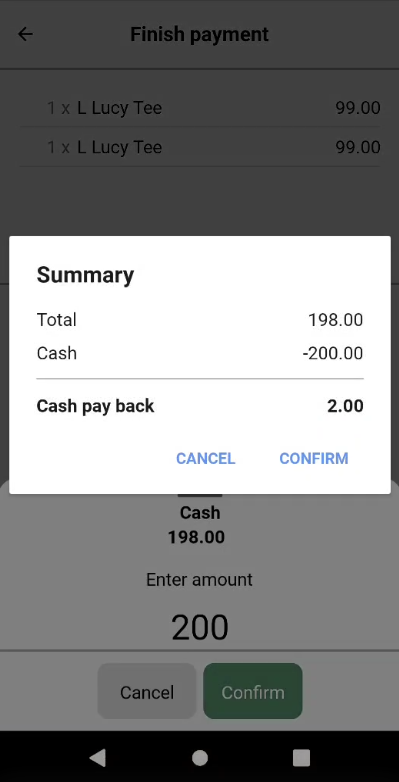
The "Summary" dialog shows the sale total, the cash received and the amount to give back to the customer in Cash pay back. Tap on Confirm to complete the payment, or Cancel to go back to the "Cash" dialog without registering the payment.
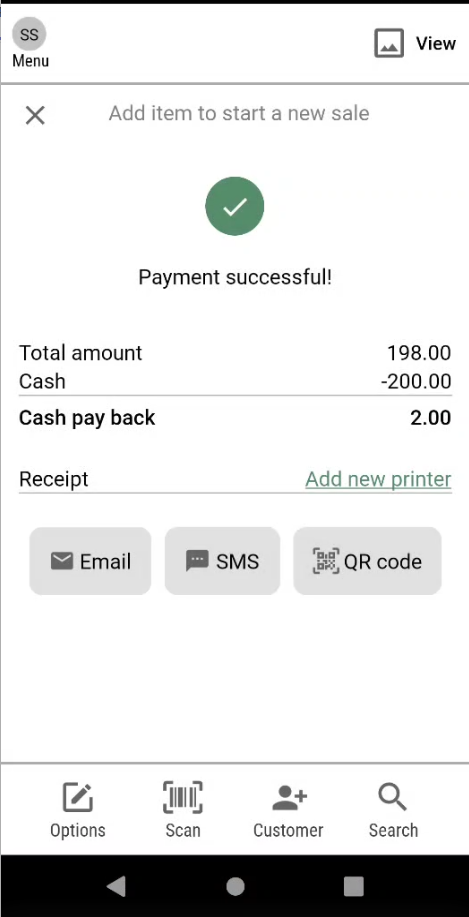
E.g. If the sale total is 198 NOK and the customer pays 200 NOK, the cash pay back is 2 NOK.
"Payment successful!" is displayed. The summary shows the total amount, the cash received and the Cash pay back. Give the change back to the customer.
Cash given is less than the sale total (split payment)
Cash can be used to pay part of the sale only when Allow split payment is enabled under Cash in the EnabledPaymentProviders parameter in Mobile POS Management. The remaining amount is paid with another payment method.
On the "Finish payment" screen, tap on the Cash button.
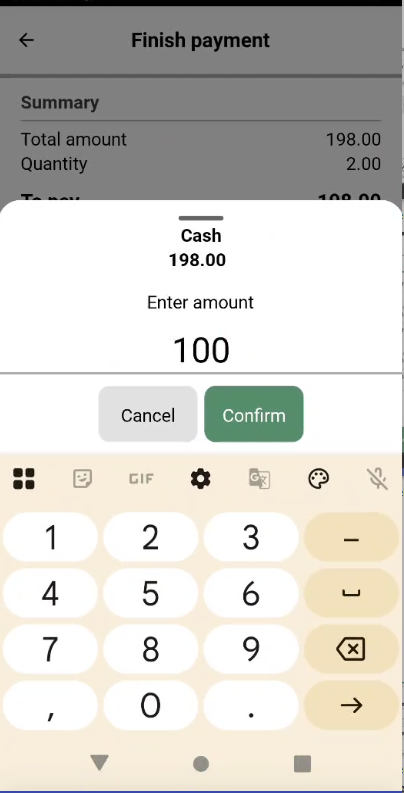
The "Cash" dialog opens. Replace the prefilled amount with the amount the customer pays in cash and tap on the Confirm button.
E.g. If the sale total is 198 NOK and the customer pays 100 NOK in cash, 98 NOK remains.
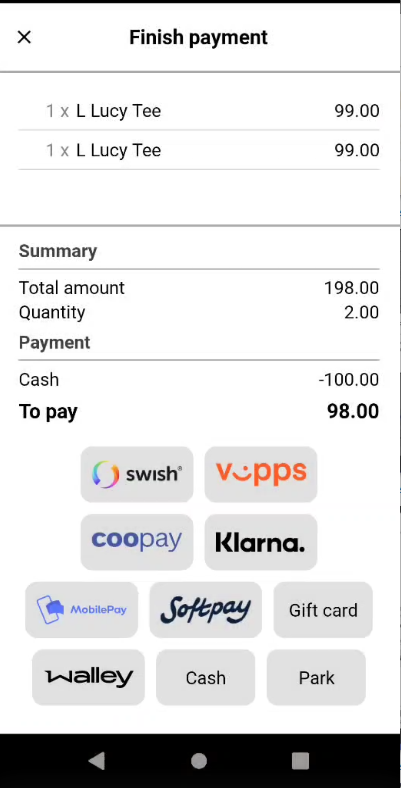
The "Finish payment" screen shows the cash payment under Payment, and the remaining amount in To pay.
Pay the remaining amount with another payment method.
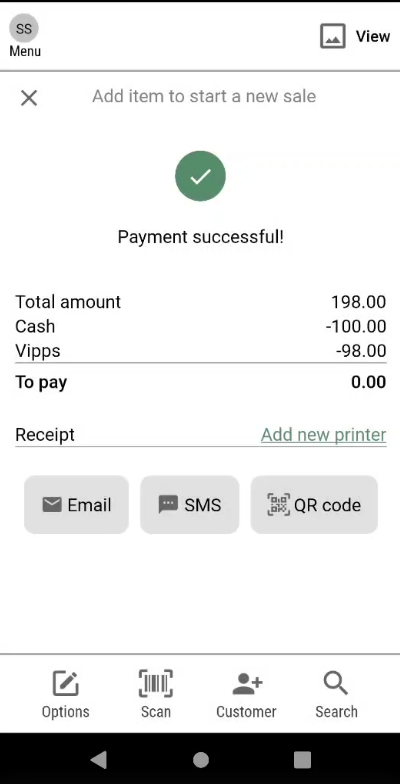
When the full amount is paid, "Payment successful!" is displayed, and all payments are shown in the summary.
Cash can be registered before or after the other payment method.
If Allow split payment is not enabled, the cash amount must cover the full sale total.
Change the sale after a cash payment
You can still add or remove items, or add another payment such as a gift card, after a cash payment is registered. Mobile POS adjusts the cash payment and the cash pay back automatically, based on the amount the customer handed over.
E.g. If the sale total is 123 NOK and the customer pays 50 NOK in cash, and items are then removed so the sale total is 40 NOK, 40 NOK is paid in cash and the cash pay back is 10 NOK.
Change or remove a cash payment
On the "Finish payment" screen, tap on the Cash button.
The "Cash" dialog opens with the registered cash amount.
To change the amount, enter the new amount and tap on Confirm.
To remove the cash payment, tap on Remove. The cash payment is removed, and the full amount can be paid with another payment method.
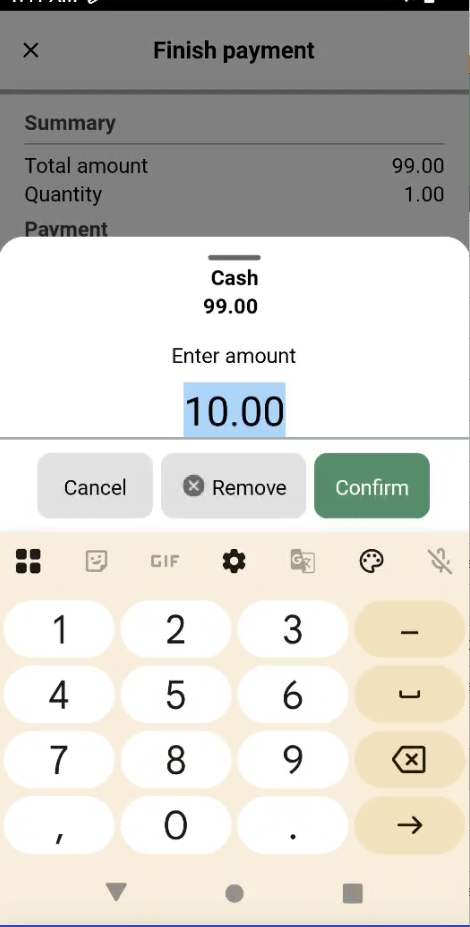
To close the "Cash" dialog without registering a payment, tap on Cancel.
Sale with a customer order
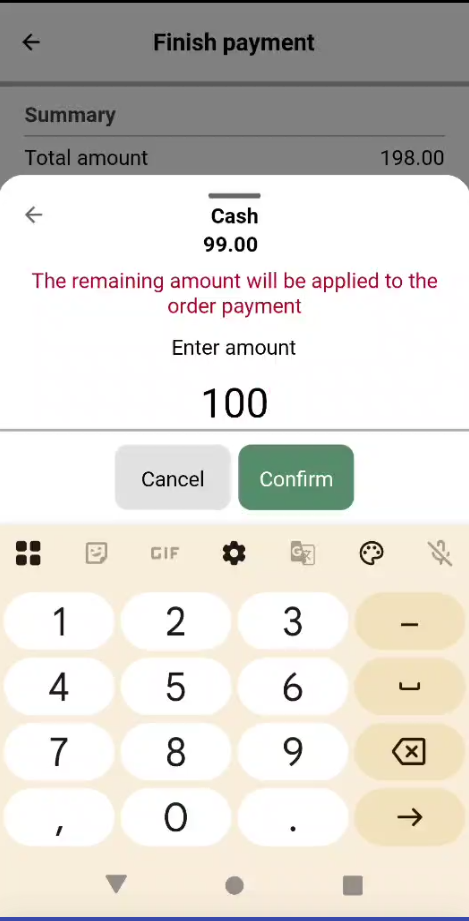
When the sale contains both items for sale and a customer order, select which part you are paying for before the "Cash" dialog opens. If the cash amount is more than the part you are paying for, the rest is used to pay the other part first. Only the amount that is left over after both parts are paid is given back as cash pay back. While you type an amount that is more than the part you are paying for, the "Cash" dialog shows: "The remaining amount will be applied to the order payment".
E.g. If the sale part is 99 NOK, the order part is 99 NOK and the customer pays 100 NOK in cash for the sale part, 1 NOK is applied to the order payment.
For more information on other payment methods, see Payment with Softpay and Payment with Vipps.
Error messages
In the "Cash" dialog
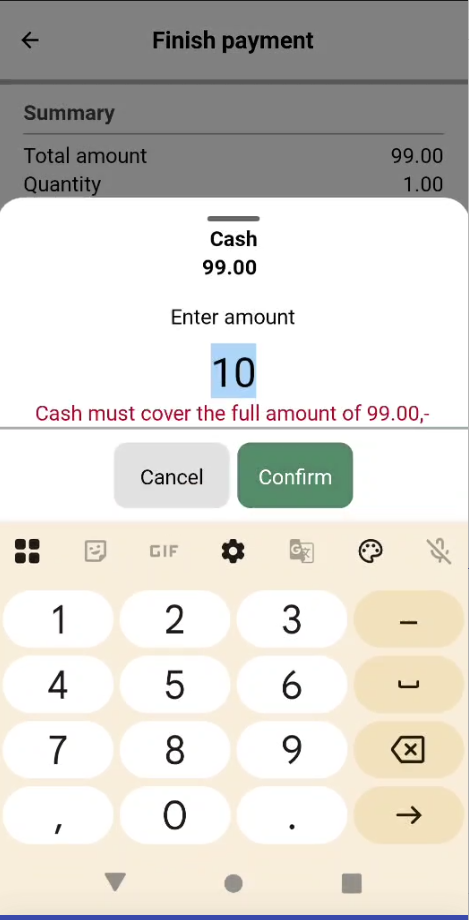
If the amount entered in the "Cash" dialog is not valid, an error message is shown below the Enter amount field, and the payment cannot be confirmed.
Cash must cover the full amount of <sale total>,-
The amount entered is less than the sale total, and Allow split payment is not enabled. Enter an amount equal to or higher than the sale total.
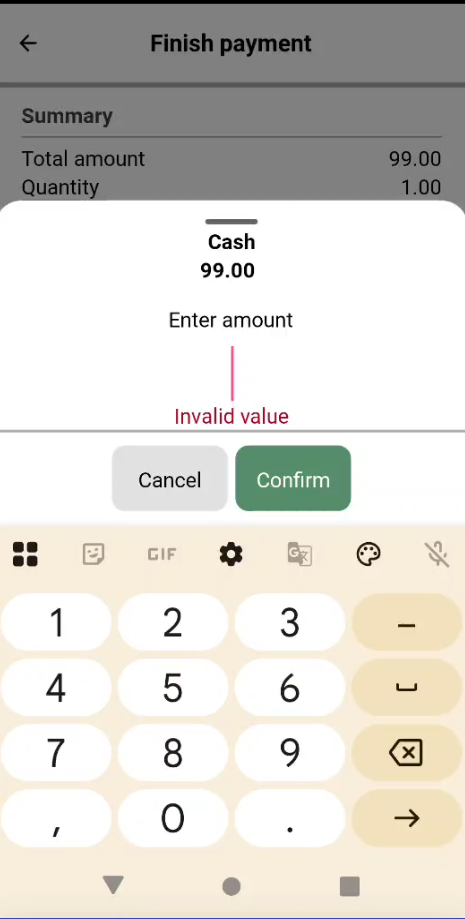
Invalid value
The Enter amount field is empty. Enter the amount received from the customer.
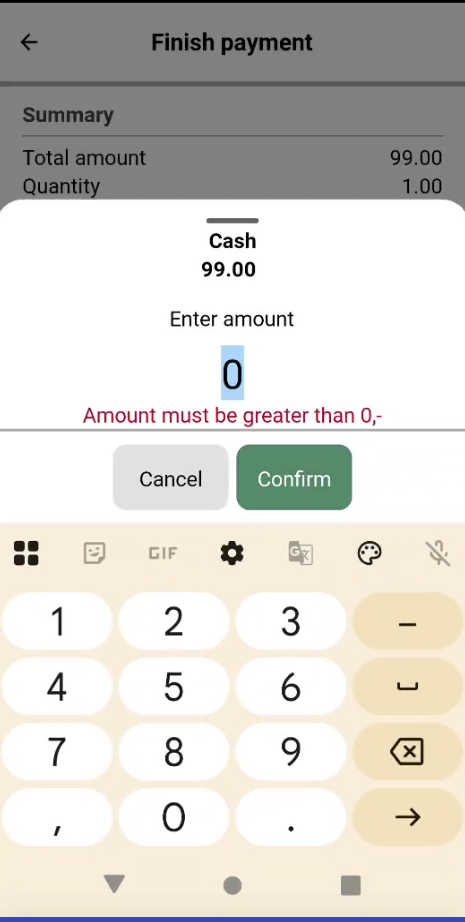
Amount must be greater than 0,-
The amount entered is 0. Enter the amount received from the customer.
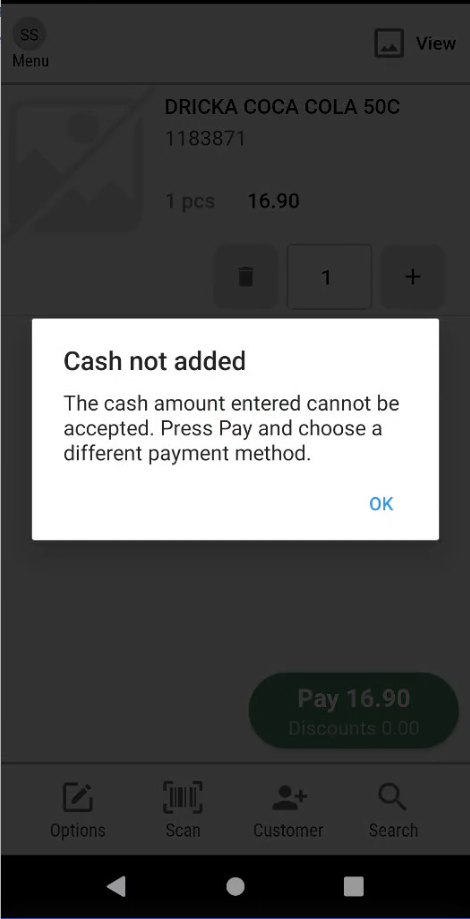
"Cash not added"
The cash payment is sent to POS when the sale is completed. If this fails, the "Cash not added" dialog is displayed.
The cash amount entered cannot be accepted. Press Pay and choose a different payment method.
POS did not accept the cash payment. The cash payment is removed from the sale, and the sale is not paid. Tap on OK, then tap on Pay and select another payment method.
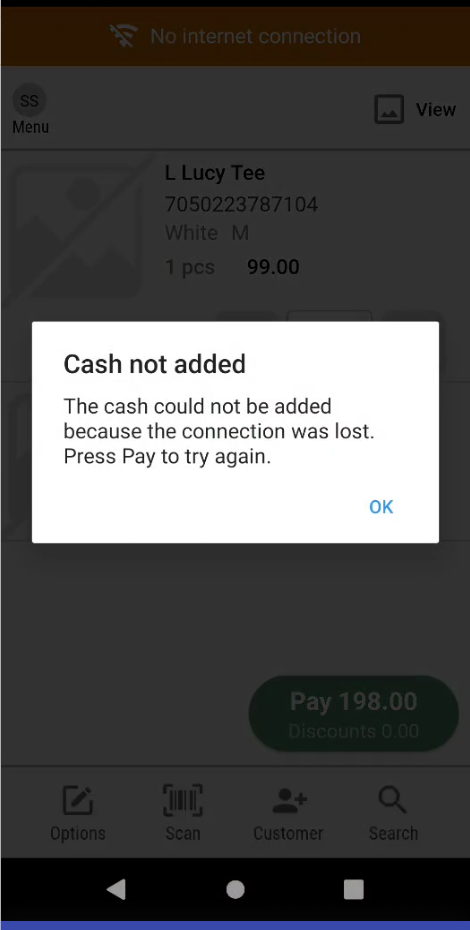
The cash could not be added because the connection was lost. Press Pay to try again.
The connection was lost while the cash payment was sent. The cash payment is kept in the sale. Tap on OK. When the connection is back, tap on Pay to try again.
If Mobile POS is closed or restarted during a sale with a cash payment, the cash payment is restored when the sale is resumed.
Cancel sale after cash payment
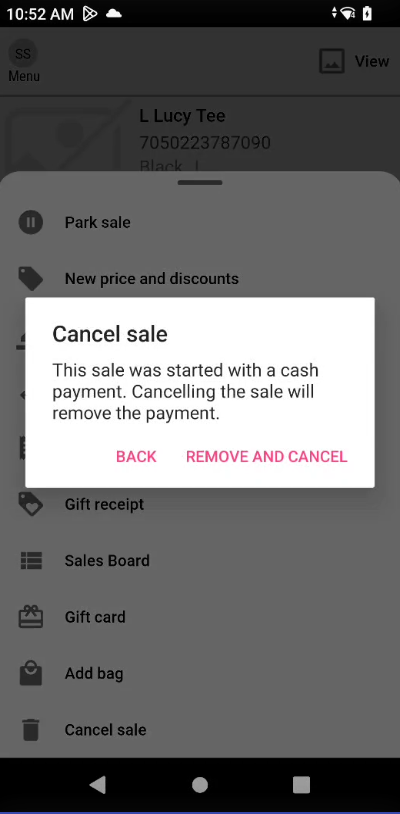
Cancel sale
If you remove the last item from the sale or tap on Cancel sale from the Options after a cash payment is registered, the "Cancel sale" dialog is displayed: "This sale was started with a cash payment. Cancelling the sale will remove the payment."
Tap on Remove and cancel to remove the cash payment and cancel the sale.
Tap on Back to return to the sale. The cash payment and the item are kept.
Park sale during a cash sale
Park sale
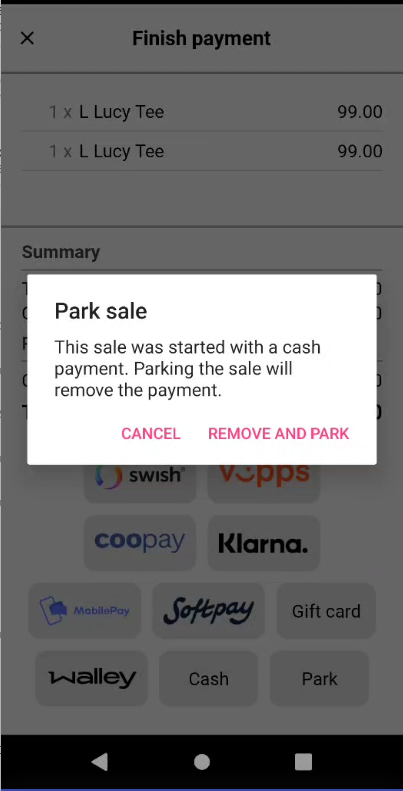
Tap on Pay, then tap on Park, or tap on Park sale from the Options. The "Park sale" dialog is displayed: "This sale was started with a cash payment. Parking the sale will remove the payment."
Tap on Remove and park to remove the cash payment and park the sale.
Tap on Cancel to return to the sale. The cash payment is kept.
For more information on how to park and retrieve a receipt, see Receipts.
Return with cash
When Allow cash returns is enabled, a return can be refunded in cash. This applies to manual returns and returns with a scanned receipt. On a return there is no amount to enter: the cashier gives back exactly the amount of the return.
For more information on how to start a return, see Returns.
The "Finish payment" screen opens. The refund options shown depend on how the original receipt was paid and on the configuration of your store, e.g. Softpay, Vipps, Cash or Park.
Refund the full return in cash
The Cash button refunds the whole return in cash, no matter how the original receipt was paid. For a manual return, Cash is the only cash option.
On the "Finish payment" screen, tap on the Cash button.
The "Summary" dialog shows the total of the return and the amount to give back to the customer in Cash pay back.
E.g. If the return total is 198 NOK, the cash pay back is 198 NOK.
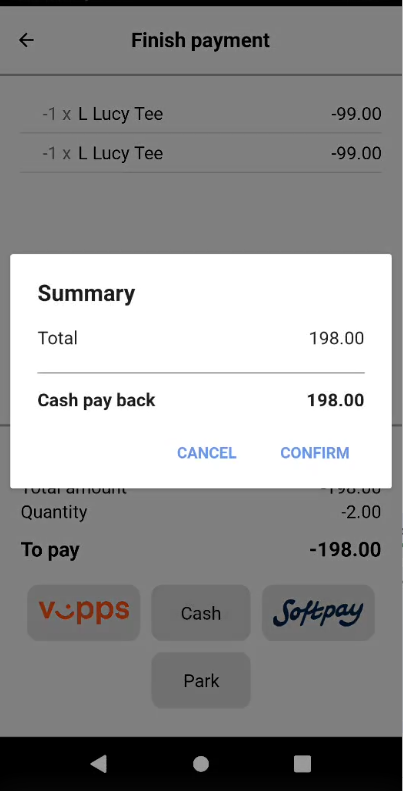
Tap on Confirm to complete the return, or Cancel to go back without registering the refund.
Give the cash back to the customer.
Return of a receipt paid with cash and Softpay or Vipps
When the original receipt was paid partly in cash and partly with Softpay or Vipps, the refund is split automatically: each payment method gets back what it paid. For a partial return, the cash part is refunded first.
On the "Finish payment" screen, tap on the Softpay or Vipps button.
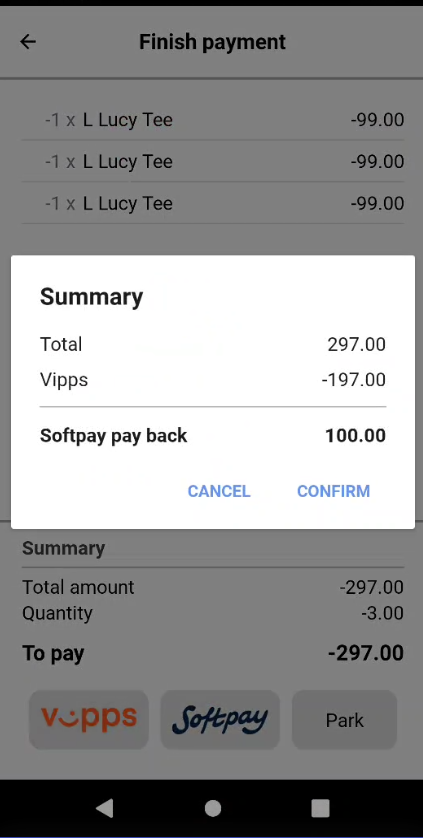
The "Summary" dialog shows the total of the return, the amount refunded with Softpay or Vipps with a minus sign, and the amount to give back to the customer in Cash pay back.
E.g. If the return total is 297 NOK and 197 NOK was paid with Softpay, the dialog shows Softpay -197.00 and the cash pay back is 100 NOK.
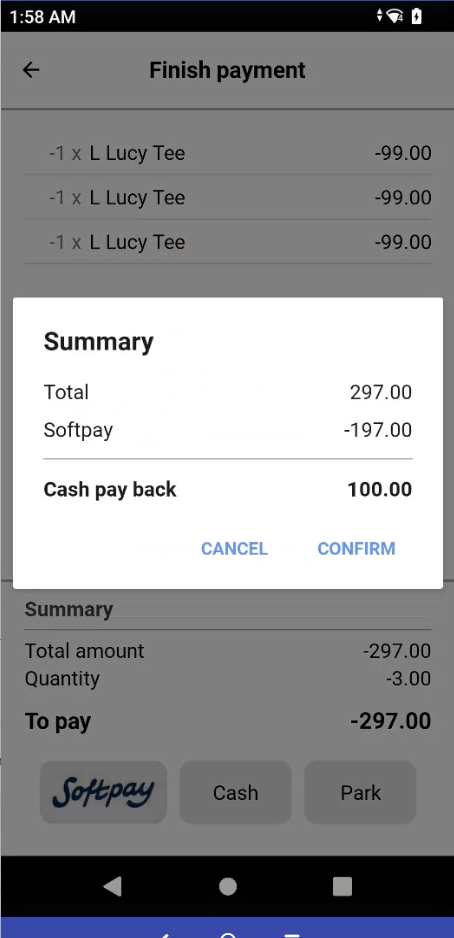
Tap on Confirm to complete the return.
Give the cash back to the customer.
Return of a receipt paid with Klarna, Walley or Instabank
Klarna, Walley and Instabank always refund the full return. The refund is not split with cash, and no "Summary" dialog is shown. If the original receipt was paid partly in cash, you can instead tap on Cash to refund the full return in cash.
When cash returns are not allowed
If Allow cash returns is not enabled and Softpay is enabled for your store, the cash part of the return is refunded with Softpay. The "Summary" dialog then shows Softpay pay back instead of Cash pay back.
E.g. If the return total is 297 NOK and 197 NOK was paid with Vipps, the dialog shows Vipps -197.00 and the Softpay pay back is 100 NOK.