A purchase order is an order you send to a supplier to restock items. You can build a purchase order for a single supplier, or for multiple suppliers at once - the app splits the latter into separate orders when you submit.
You reach the Purchase order flow from the Create tab → Procurement → Purchase order. Purchase order pages share the general transaction layout, header, more menu, and done page described on Transaction basics. This page covers only what is specific to purchase order.
The start page
The Purchase order start page asks whether the order is for a single supplier or for multiple suppliers.
The page shows a shopping-cart illustration, the message “Select an option…”, and two buttons:
One supplier — all items on the order are ordered from the same supplier. Tap to open the Select supplier sheet (see below).
Multiple suppliers — items on the order may come from different suppliers; each item’s supplier is decided when the item is added. Tap to go straight to the purchase order page.
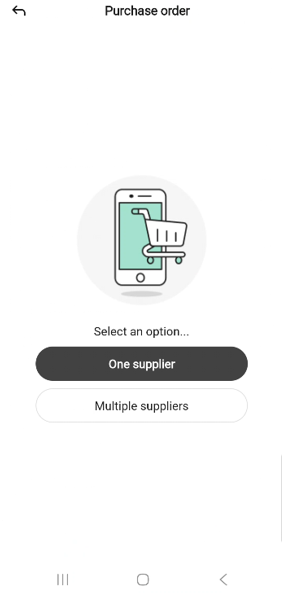
To leave the start page, tap the back arrow in the top-left.
If a purchase order is already paused, the app asks whether to resume it before the start page. See Resuming a paused transaction.
Selecting a supplier (one supplier only)
Tapping One supplier opens the Select supplier bottom sheet.
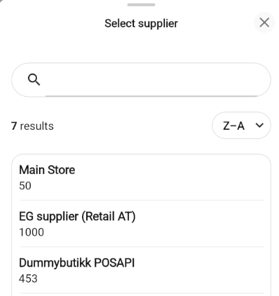
Type in the search field to narrow the list. The result count appears below the field (for example, 100+ results).
Tap the A→Z drop-down to change the sort order.
Tap a supplier row to choose it. The sheet closes and the purchase order page opens with the supplier shown in the header.
Tap the X to close the sheet without choosing. You return to the start page.
Purchase order page
The Purchase order page uses the standard transaction layout, with two rows below the progress bar:
The supplier row - shown only on single-supplier orders - has a location pin and the supplier name. Multi-supplier orders do not show a supplier row at all; the page goes straight from the progress bar to the Total row.
The Total row shows the item count and the order total. If any items are on promotion, both the non-discounted and discounted totals are shown, with the non-discounted total struck through.
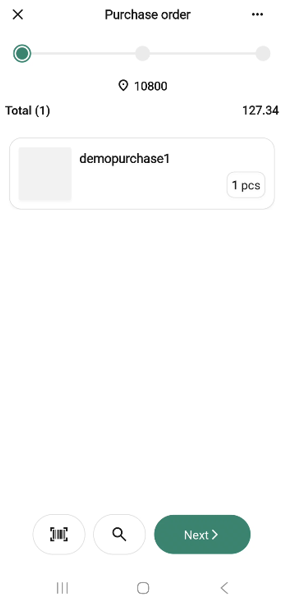
The empty state shows a dashed frame with a + icon and “Scan or use search to start adding items”.
The bottom bar has a Scan icon, a Search icon, and a Next button. Next is disabled until at least one item is on the order.
Adding items
Purchase order uses the standard scan and search flow described on Transaction basics.
In the Search items sheet, tapping an item row adds it directly to the order. Tapping the info (i) icon on a row opens the “item preview “ - tapping the + button in the preview asks “‘<item name>’ will be added to the purchase order.” before the item is added. Items are searched after applying the procurement rules, for an item to be added to purchase order, it should follow following rules,
For one supplier we should fetch only items for this supplier.
Can be ordered (CanBeOrdered is set to True).
Ordering blocked (OrderingBlock is set to False).
Supplier sales start date (SupplierSalesStart is null or earlier than now).
Supplier sales end date (SupplierSalesEnd is null or later than now).
Item must have an assortment code.
Item rows
Item rows on a purchase order follow the shared quantity-row pattern: one row is focused at a time, the focused row has − / + step buttons (or trash / + when the quantity is 1), and tapping the chevron (>) on the right of a focused row opens the Item details page.
Purchase-order rows also show the item’s price on the Total row at the top of the page, with any promotion discount struck through on the non-discounted price.
When you need to remove an item, use the trash icon to open the Remove item? popup. For a purchase order the popup reads “‘<item name>’ will be removed from the purchase order.”
The more menu
The … button in the header opens the Purchase order options bottom sheet.
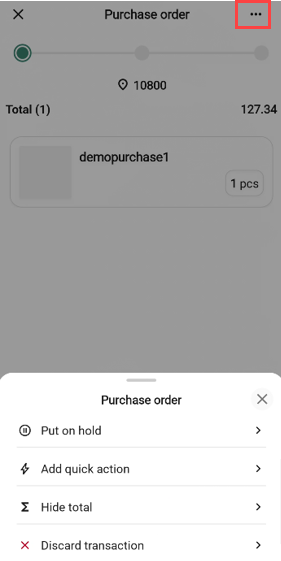
The menu lists only the common transaction options — Add quick action, Put on hold, Hide total, and Discard transaction. A purchase order does not have a user-chosen name, so there is no Edit name option.
The finish page
Tap Next on the Purchase order page to open the finish page
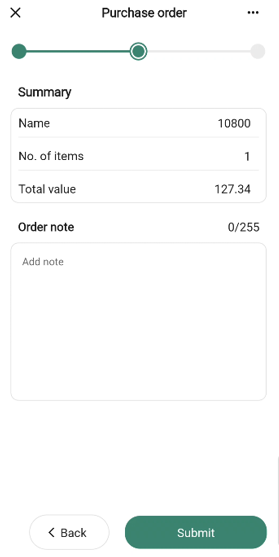
The summary has these rows:
Supplier — the supplier for the order. Only shown on single-supplier orders; multi-supplier orders omit this row.
No. of items — number of distinct items on the order.
Discount — total supplier discount on the order, shown in red.
Total — order total after discount.
The free-text field is labelled Order note with the placeholder “Add note”.
Tap Submit to send the order, or Back to return to the Purchase order page.
How the submission is processed
When you tap Submit, the order is queued for delivery to the Procurement Service — the system that handles ordering and supplier communication across your store chain. The hand-off happens in the background, so the done page appears right away; the Procurement Service picks up the order a short time later. For multi-supplier orders, the cart is split into one order per supplier at this point.