The Service location register lets you manage all service locations available for use on service orders. Service locations can be linked to store profiles, so each store only has access to the locations relevant to its profile.
The Service location register is located in the Customer menu. It is in the Service order section.
When you create a service order or view an existing one, the location picker displays all active locations from the register that are available to your store. 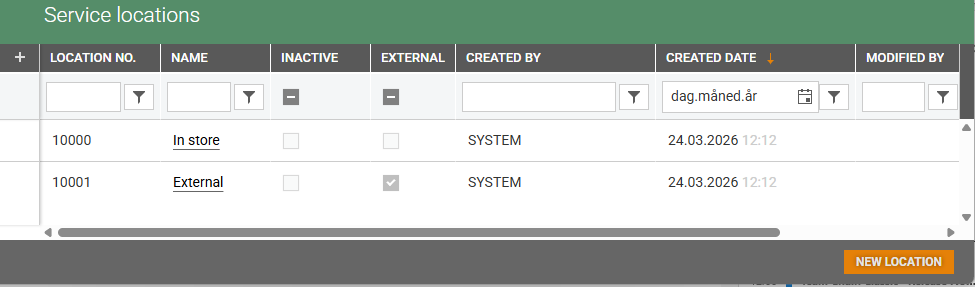
Each service location has a unique, automatically generated identifier number. Two default service locations are available to all stores out of the box:
In store — used for Repairs or Services handled within the store.
External — used for Services sent to an external provider. Only one external service location can exist per store profile.
Note: Service orders that previously used the "Central" location are automatically linked to the "In store" service location.
Permissions:
View service locations - Displays the service location register (read-only).
Manage service locations - Create, edit, and activate/deactivate service locations.
Create new location
Click the New location button, this will open the “New location” page.
Add a location name (required).
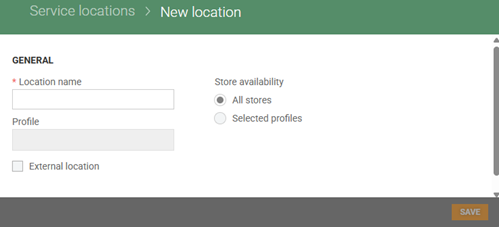
Select store availability, All stores is preselected.
Click Selected profiles if you want to limit this location to a specific profile. The “Profile” field opens. Select desired profile.
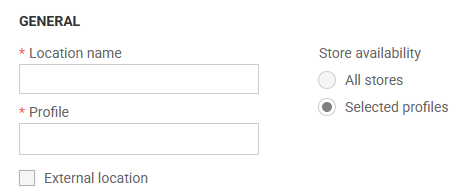
Tick the External location field if the new location should be marked as an external location.
Click the Save button to create the new location.
View service location details
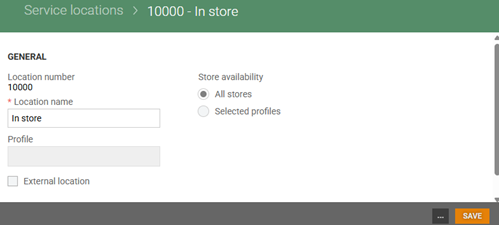
Click the relevant service location name in the “Name” column, to open the Service location details page. Here you will find details about the location, like name and store availability, and you can edit service location details.

Edit service location details
It is possible to edit the “Location name”, Store availability and you can select/unselect the External location option. Only one location at each profile can be selected as External location.
Click the Save button to save the changes.
Activate and deactivate service location
A service location can be set to active or inactive. Inactive service locations cannot be selected for new service orders or added to existing ones.
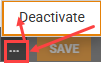
Click the “More (…)” icon, select deactivate/activate. The available option is depending on whether is currently active or inactive.