Breakage, Internal use, and Complaint are three variants of the same underlying flow - a stock transaction that removes items from sellable stock and records a reason code and action code for the removal. The three share the same pages, dialogs, more menu, finish page, and done page; only the entry point, on-screen labels, and configured codes differ.
Transaction | Create tab entry | Used for |
|---|---|---|
Brekage | Inventory → Brekage | Items that are broken or unsellable |
Internal use | Inventory → Internal use | Items used internally (for example, by staff) |
Complaint | Inventory → Complaint | Items against which a complaint has been registered. |
Stock transaction pages share the general transaction layout, header, more menu, discard, finish, and done described on Transaction basics.
This page covers what is specific to stock transactions; the examples and screenshots use Breakage, but the flow is identical for Internal use and Complaint.
The start page
The start page has no options to pick from - you simply begin by picking an item.
The page shows an illustration, a hint message of the form “Scan an item to start registering ”, an or separator, and a Search items button. Each variant uses its own illustration and verb:
Breakage - “Scan an item to start registering breakage”.
Internal use - “Scan an item to start registering internal use”.
Complaint - “Scan an item to start registering a complaint”.
Start the transaction in one of two ways:
Scan an item — point the device at the item’s barcode. A new transaction opens with that item already on it. See Scanning an item.
Tap Search items — open the search sheet to find the item by name or number. See Adding items by searching.
To leave the start page without registering anything, tap the back arrow in the top-left.
Missing reason or action code
If back-office has not configured reason and action codes for the transaction, the start page cannot be used. An error popup opens: “The selected transaction type is missing required action or reason codes. It cannot be used at this time.”
Tap Close to return to the Home screen; contact back-office to configure the codes.
Transaction page
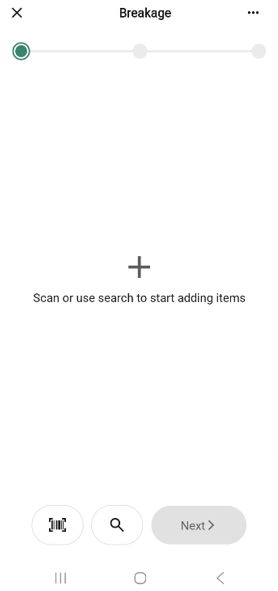
The Transaction page uses the standard transaction layout. The bottom bar has a Scan icon, a Search icon, and a Next button.
Next is disabled until at least one item is on the transaction.
When no items are on the transaction, the main area shows a + icon and “Scan or use search to start adding items” - the same empty state you see before the first item and after you remove the last item.
Adding an item - Reason and Action codes
The dialog shows the item name at the top, a Reason code dropdown, an Action code dropdown, and one or two quantity fields:
Reason code - configured by back-office per transaction type. For example, breakage typically lists Damaged item, Expired item, Damaged packaging, Theft, or Visible waste; internal use and complaint use their own sets.
Action code - also configured per transaction type (for example, Return to central warehouse, Return to vendor).
Quantity field(s) a single pcs field with − / + step buttons for regular items.
On a Breakage transaction (the only variant where this happens), for ingredient items transaction-basics, the dialog shows two fields instead: Supplier packages and Inner units (with the pack breakdown shown in the label, for example “Inner units (12 x Hot dog bun sesame)”). Either or both can be filled; Save is enabled as soon as one of the two has a value. Internal use and Complaint always show a single quantity field, even on ingredient items.
The first item you add in a session starts with both dropdowns empty — you must pick both before saving. From the second item onwards, both dropdowns are pre-filled with the codes you used on the previous item; change them when the new item needs different codes.
Enter the quantity (or quantities) and tap Save to add the item. Tap the X to close the dialog without saving.
The item rows on the transaction page then follows the shared quantity-row pattern.
For ingredient items, the row shows a single combined quantity on the supplier-package unit - a decimal value when inner units were entered (for example, 4,75 pcs). Tapping the chevron in a row reopens the reason/action dialog so you can change the codes or quantities for that item
The more menu
The “More (…)” button in the header opens the transaction options bottom sheet. The sheet’s title matches the current transaction (Breakage, Internal use, or Complaint).
The menu has only the common options Add quick action, Hide total, and Discard transaction. Stock transactions cannot be put on hold — Put on hold is not listed.
The finish page
Tap Next on the transaction page to open the finish page.
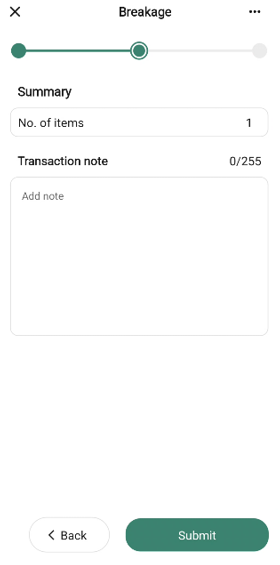
The free-text field is labelled Transaction note with the placeholder “Add note”.
Tap Submit to register the transaction, or Back to return to the transaction page.
The done page
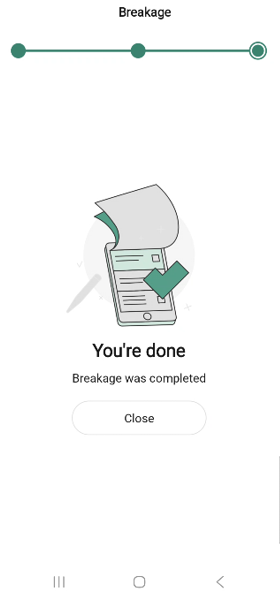
After you submit, the done page confirms the transaction was registered. The message depends on the variant:
Breakage - “Breakage was registered”.
Internal use - “Internal use was registered”.
Complaint - “Complaint was registered”.
How the submission is processed
When you tap Submit, the breakage, internal use, or complaint is queued for delivery to the Inventory Service - the system that tracks stock and stock movements across your store. The hand-off happens in the background, so the done page appears right away; stock figures elsewhere in the app may take a short moment to reflect the write-off. All three variants are submitted the same way - only the reason and action codes differ.