Loging in for the first time
You can either log in your Entra ID account or with Cashier number and PIN. The steps below show the cashier login method. For Entra ID, see Log in with Entra ID.
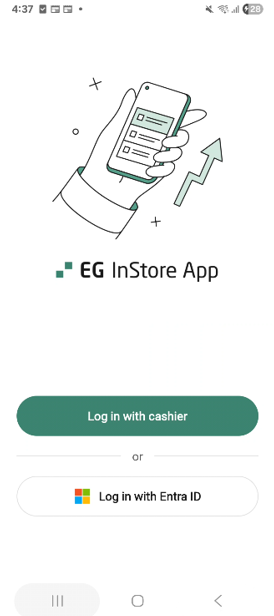
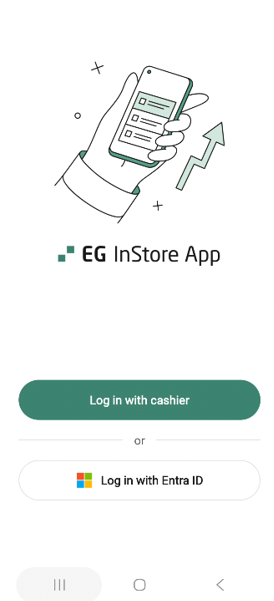
Open the InStore App. The Log in screen shows two options.
Tap Log in with cashier.
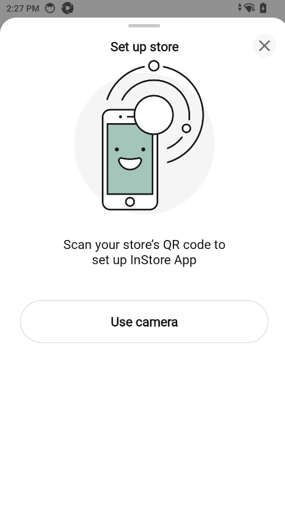
The Set up store bottom sheet opens. Tap Use camera or scan using Zebra scanner.
The Scan QR code screen opens. Point the camera at your store’s QR code. The app recognizes the code automatically — you do not need to press anything. To cancel, tap Close.
Once the QR code is recognized, the Log in screen opens with your store shown at the top.
Tap the Cashier no. field and enter your cashier number.
Tap the PIN code field and enter your PIN.
Tap Log in.
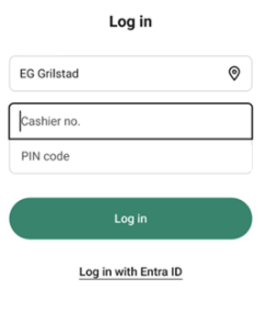
The app verifies your credentials and opens the Home screen. The store is remembered on this device.
Changing the store
If you need to use a different store, tap the Store name at the top of the cashier Log in screen. The Change store bottom sheet opens — tap Use camera or use Zebra and scan the new store’s QR code.
If you cancel the scan, the previously set store remains selected.
Logging in with Entra ID
You can log in to the InStore App with your Entra ID (Microsoft work account) instead of a cashier number and PIN. With this method you choose your store from a list after signing in, so you do not need a store QR code.
Open the InStore App. On the Log in screen, tap Log in with Entra ID.
The Microsoft Pick an account page opens. Tap the account you want to use or tap Use another account to sign in with a different email.
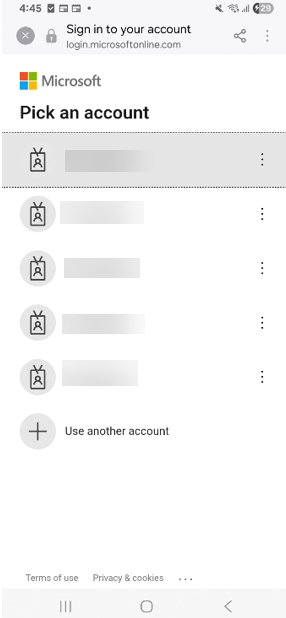
Enter your password and tap Sign in. If you have forgotten your password, tap Forgot my password and follow the prompts.
After signing in, the Select store screen opens. This screen cannot be dismissed — you must choose a store to continue.
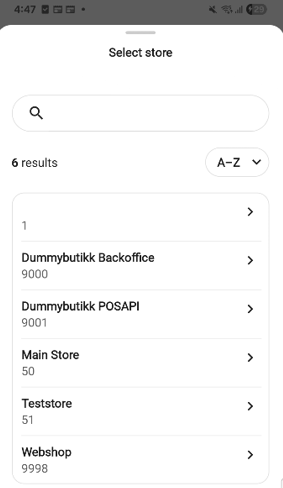
If your account has access to only one store, the Select store screen is skipped and the app opens straight to the Home screen for that store.
Find your store. You have two ways to narrow the list:
Tap the Search stores… field and type the store name or number.
Tap the A→Z sort control to choose A→Z or Z→A ordering.
Tap your store in the list.
The app completes the login and opens the Home screen for the selected store.
Logging out
You can log out of the InStore App at any time from the Home screen. If you signed in with Entra ID, you are also asked which Microsoft account to sign out of.
On the Home screen, tap the profile icon in the top-right corner.
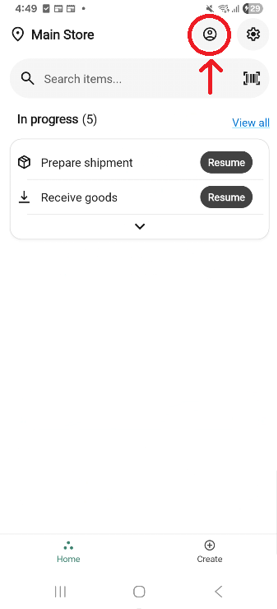
The profile bottom sheet opens, showing your name, Preferences, Log out, and the app version. Tap Log out.
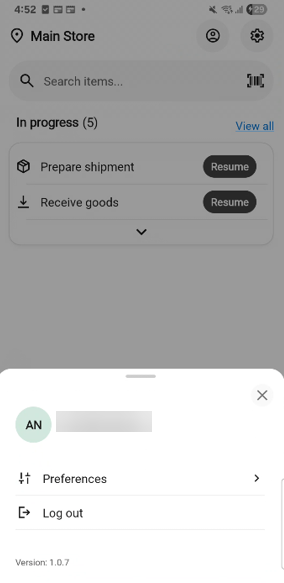
A confirmation popup asks, “Do you want to log out?”. Tap Yes to confirm, or No to stay signed in.
If you signed in with Entra ID, the Microsoft Sign out page opens. Tap the account you want to sign out of.
The app returns to the Log in screen.
If you last signed in with a cashier number and PIN, the store stays set up on this device. The next user can sign in without scanning the store QR code again.
If you last signed in with Entra ID, no store is remembered. The next user signing in with Entra ID will need to pick a store again from the Select store list.